> ## Documentation Index
> Fetch the complete documentation index at: https://doc-test-my.mintlify.site/llms.txt
> Use this file to discover all available pages before exploring further.
# Common Errors
> Check the list of common errors returned in the API responses from Razorpay and their solutions. Also, check the steps to view API errors.
View the list of common errors and their solutions below:
**Cause**:
* Incorrect API method while calling the API.
* Feature required for the API call is not enabled on your account.
**Solution**:
- Check and use the correct API method.
- Contact our Support team to enable the feature on your account.
```json Sample Error Response theme={null}
{
"error": {
"code": "BAD_REQUEST_ERROR",
"description": "The requested URL was not found on the server",
"source": "NA",
"step": "NA",
"reason": "NA",
"metadata": {}
}
}
```
**Cause**: Whitelisted IPs on your account.
**Solution**: Contact our [Support team](https://curlec.com/support/) to verify and confirm if any IPs are currently whitelisted on your account. If yes, remove the whitelisted IPs for both test and live modes.
```json Sample Error Response theme={null}
{
"error": {
"code": "BAD_REQUEST_ERROR",
"description": "Access Denied",
"source": "NA",
"step": "NA",
"reason": "NA",
"metadata": {}
}
}
```
**Cause**:
* Incorrect API key or secret used in the request.
* Test mode key used in live mode or vice versa.
* API key has been regenerated and the old key is still in use.
**Solution**:
* Verify that you are using the correct API key and secret from the [Dashboard](/docs/api/authentication).
* Ensure the key corresponds to the correct mode (test or live).
* If you have recently regenerated your API key, update it in your integration.
```json Sample Error Response theme={null}
{
"error": {
"code": "BAD_REQUEST_ERROR",
"description": "The api key provided is invalid",
"source": "NA",
"step": "NA",
"reason": "NA",
"metadata": {}
}
}
```
**Cause**:
* The entity ID (such as a payment ID, order ID or refund ID) passed in the request does not exist.
* The entity belongs to a different account than the one making the request.
* A test mode ID is used in live mode or vice versa.
**Solution**:
* Check that the ID is correct and belongs to the authenticated account.
* Ensure that the mode (test or live) matches the ID being used.
```json Sample Error Response theme={null}
{
"error": {
"code": "BAD_REQUEST_ERROR",
"description": "The id provided does not exist or access is unauthorised",
"source": "NA",
"step": "NA",
"reason": "NA",
"metadata": {}
}
}
```
**Cause**: One or more mandatory parameters were not included in the API request.
**Solution**:
* Review the API request and ensure all required parameters are included.
* Refer to the relevant API endpoint documentation to check which parameters are mandatory.
```json Sample Error Response theme={null}
{
"error": {
"code": "BAD_REQUEST_ERROR",
"description": "The amount field is required.",
"source": "business",
"step": "payment_initiation",
"reason": "input_validation_failed",
"metadata": {},
"field": "amount"
}
}
```
**Cause**:
* A parameter was passed with an incorrect data type, format or value (for example, a string passed where an integer is expected).
* A field value exceeds the allowed length or range.
**Solution**:
* Check the data type and format expected for each parameter in the API documentation.
* Ensure values fall within the allowed range or length limits.
```json Sample Error Response theme={null}
{
"error": {
"code": "BAD_REQUEST_ERROR",
"description": "The amount must be an integer.",
"source": "business",
"step": "payment_initiation",
"reason": "input_validation_failed",
"metadata": {},
"field": "amount"
}
}
```
**Cause**: Your integration has exceeded the allowed API request rate limit within a given time window.
**Solution**:
* Implement exponential backoff and retry logic in your integration.
* Reduce the frequency of API calls, particularly for polling-based implementations.
* Use webhooks instead of polling to receive real-time updates on payment and order events.
* To request a limit increase, contact [Razorpay Support](https://razorpay.com/support/). Requests are reviewed case-by-case and approved only for legitimate use cases.
```json Sample Error Response theme={null}
{
"error": {
"code": "BAD_REQUEST_ERROR",
"description": "Too many requests",
"source": "NA",
"step": "NA",
"reason": "NA",
"metadata": {}
}
}
```
**Cause**: An unexpected error occurred on the server while processing your request. This may be a transient issue.
**Solution**:
- Retry the request after a short delay.
- Ensure the request body does not contain unsupported characters such as emojis.
- If the issue persists, contact our Support team with the request details.
```json Sample Error Response theme={null}
{
"error": {
"code": "SERVER_ERROR",
"description": "We are facing some trouble completing your request at the moment. Please try again shortly.",
"source": "NA",
"step": "NA",
"reason": "NA",
"metadata": {}
}
}
```
**Handy Tips**
If you are using [our SDKs for integration](/docs/payments/server-integration), the error responses result in exceptions that need to be handled in your integration.
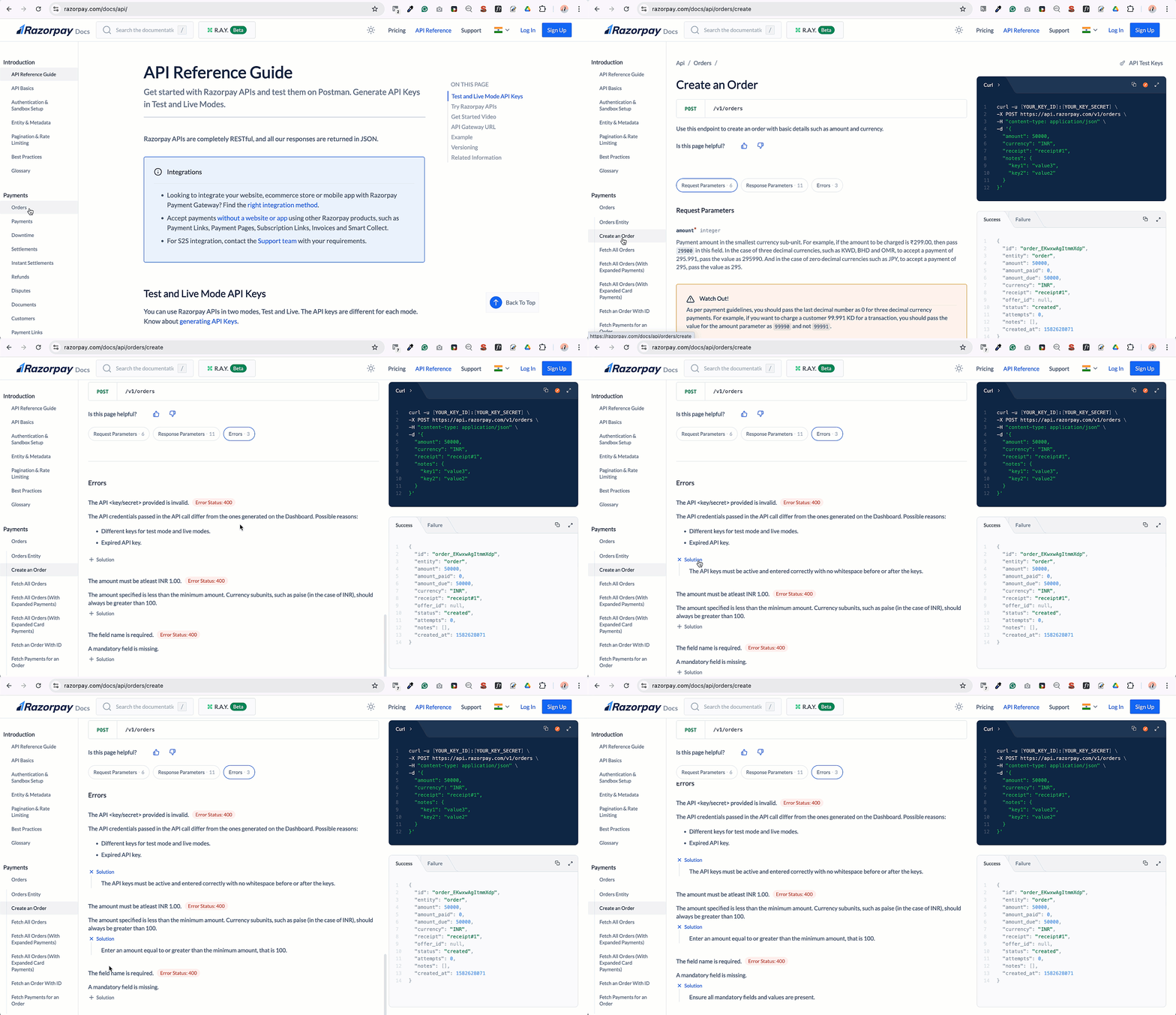
## Endpoint-Specific Errors
Each API endpoint page also lists errors specific to that operation — for example, errors you can only hit when creating an order, or when capturing a payment.
To view them:
1. Go to the relevant API endpoint page, such as [Create an Order](/docs/api/orders/create).
2. Click the **Errors** capsule. The list of errors is displayed.
 ### Related Information
* [Payment Error Codes](/docs/errors/payments/list)
* [UPI Errors](/docs/errors/payments/upi)
* [Card Errors](/docs/errors/payments/cards)
* [Payout Errors](/docs/errors/x)
### Related Information
* [Payment Error Codes](/docs/errors/payments/list)
* [UPI Errors](/docs/errors/payments/upi)
* [Card Errors](/docs/errors/payments/cards)
* [Payout Errors](/docs/errors/x)