> ## Documentation Index
> Fetch the complete documentation index at: https://doc-test-my.mintlify.site/llms.txt
> Use this file to discover all available pages before exploring further.
# New to Razorpay
> Steps to sign up as a Razorpay Partner and activate your account by completing KYC.
You can join the Razorpay Partnership program by signing up on the Partners webpage and completing a few simple steps on the Dashboard.
## Become a Razorpay Curlec Partner
**Handy Tips**
* Review the [eligibility requirements](/docs/partners#who-can-become-a-partner) for the Razorpay Partnership Program.
* All Partners are onboarded as Service Partners by default.
### Sign Up and KYC
If you are new to Razorpay, you must first sign up for a Razorpay account.
Follow these steps:
1. Navigate to the [Partners](https://curlec.com/partners) webpage and click **Become a Partner** or **Sign Up**.
2) Enter your email id and click **Continue**.
3) Enter a password and click **Create Password**.
 4) Enter the OTP sent to your registered email and click **Verify**.
5) Enter your name and optionally, your number. Click **Continue**.
4) Enter the OTP sent to your registered email and click **Verify**.
5) Enter your name and optionally, your number. Click **Continue**.
 This completes the account creation process.
2. Enter your phone number and click **Continue**.
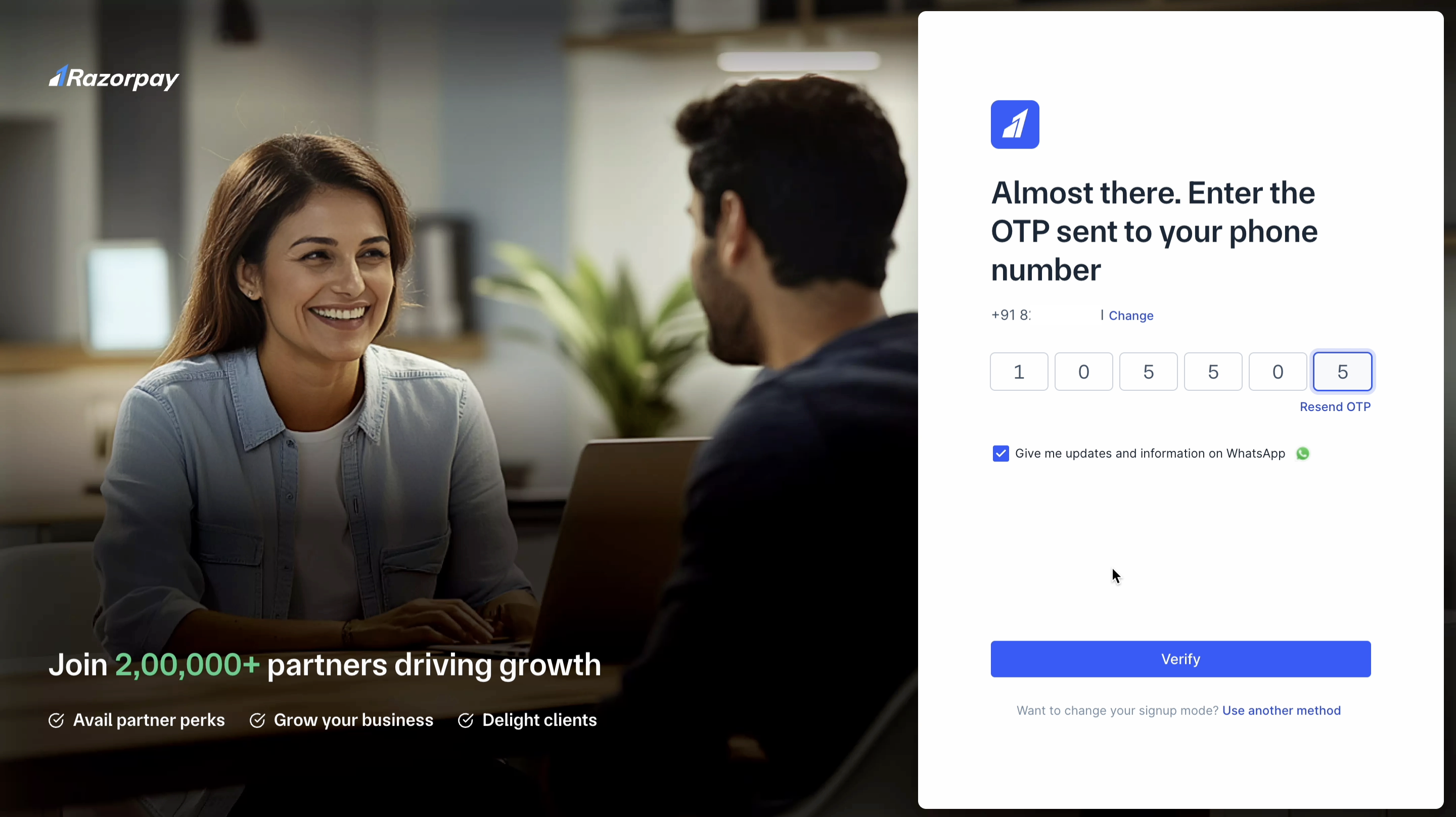
3. Enter the OTP sent to your registered phone number and click **Verify**.
This completes the account creation process.
2. Enter your phone number and click **Continue**.
3. Enter the OTP sent to your registered phone number and click **Verify**.
 4. Enter your name and optionally, your email. Click **Continue**.
This completes the account creation process.
As a Razorpay Partner, you are eligible to receive [commissions](/docs/partners/commissions) from Razorpay. You must complete the account activation and KYC process to receive the commission. We recommend you perform this step using a desktop computer.
To activate your account:
1. Log in to the Dashboard and navigate to **Partner** → **Home**.
2. Click **Submit KYC**.
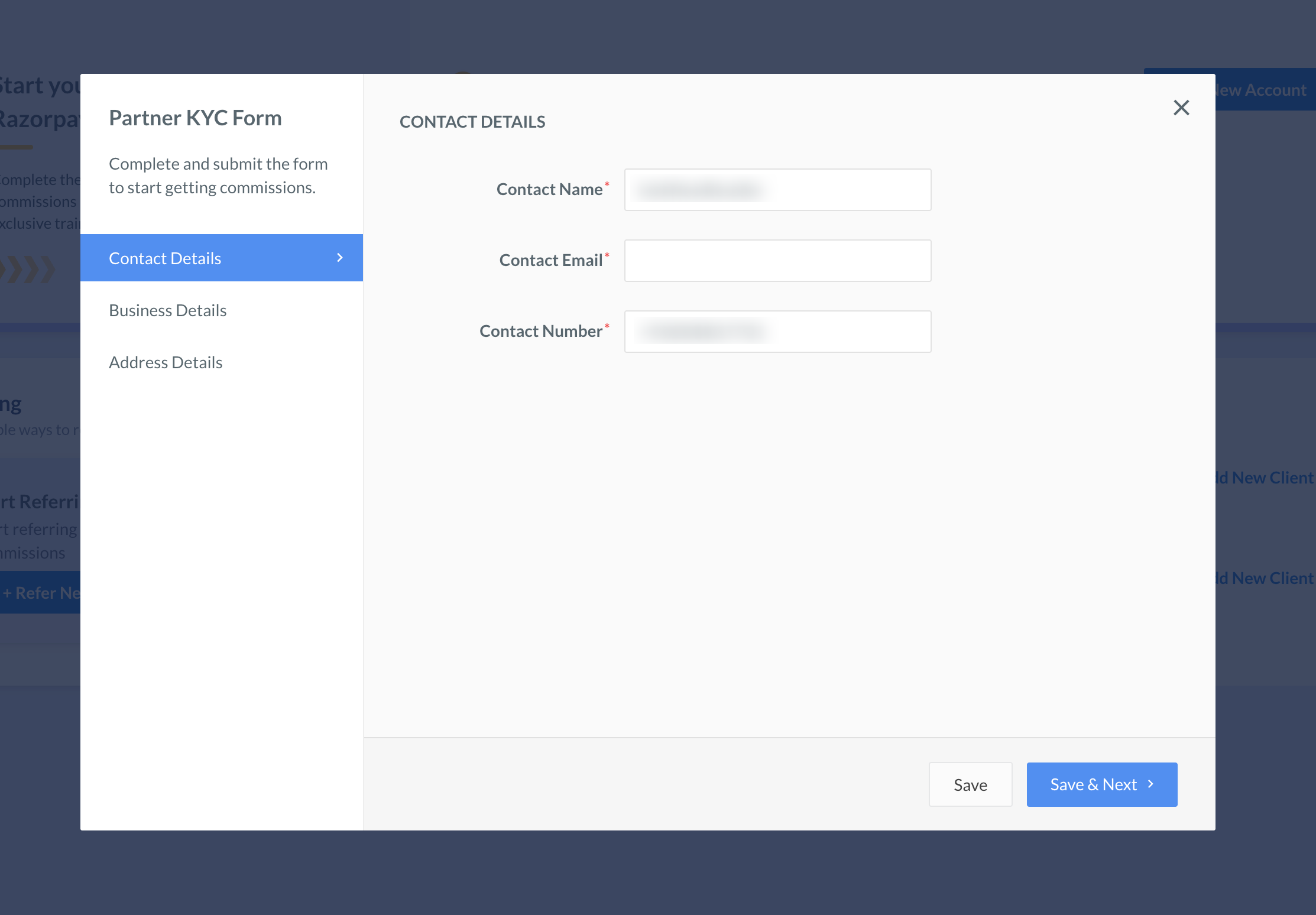
3. In the **CONTACT DETAILS** section, fill in your name, email and number. Click **Save & Next**.
4. Enter your name and optionally, your email. Click **Continue**.
This completes the account creation process.
As a Razorpay Partner, you are eligible to receive [commissions](/docs/partners/commissions) from Razorpay. You must complete the account activation and KYC process to receive the commission. We recommend you perform this step using a desktop computer.
To activate your account:
1. Log in to the Dashboard and navigate to **Partner** → **Home**.
2. Click **Submit KYC**.
3. In the **CONTACT DETAILS** section, fill in your name, email and number. Click **Save & Next**.
 4. In the **BUSINESS DETAILS** section, select your **Business Type** and fill relevant details. Click **Save & Next**.
5. Fill the **ADDRESS DETAILS** section. Click **Save**.
6. Read and agree to the **Razorpay Terms and Conditions**. Click **Submit and Verify**.
After you submit the details, our team will review the KYC form.
* We will notify you via email, SMS and WhatsApp if we need further information.
* The review process takes 4-5 days.
* Upon successful verification:
* Razorpay displays the **Settlements Enabled** success message on the Dashboard.
* Razorpay deposits the settlement amount in your bank account per your settlement schedule.
## Enable Partner Commissions
To enable commissions on your account, send an email to the [Razorpay Curlec Support Portal](https://curlec.com/support/).
## Add Sub-Merchants
Know how to [add new sub-merchants](/docs/partners/service-partners/add-submerchants) on your Razorpay Dashboard.
### Related Information
* [Know Your Commissions](/docs/partners/commissions)
* [Partners](/docs/partners)
* [Become a Partner - Existing Razorpay Merchant](/docs/partners/existing-merchant)
4. In the **BUSINESS DETAILS** section, select your **Business Type** and fill relevant details. Click **Save & Next**.
5. Fill the **ADDRESS DETAILS** section. Click **Save**.
6. Read and agree to the **Razorpay Terms and Conditions**. Click **Submit and Verify**.
After you submit the details, our team will review the KYC form.
* We will notify you via email, SMS and WhatsApp if we need further information.
* The review process takes 4-5 days.
* Upon successful verification:
* Razorpay displays the **Settlements Enabled** success message on the Dashboard.
* Razorpay deposits the settlement amount in your bank account per your settlement schedule.
## Enable Partner Commissions
To enable commissions on your account, send an email to the [Razorpay Curlec Support Portal](https://curlec.com/support/).
## Add Sub-Merchants
Know how to [add new sub-merchants](/docs/partners/service-partners/add-submerchants) on your Razorpay Dashboard.
### Related Information
* [Know Your Commissions](/docs/partners/commissions)
* [Partners](/docs/partners)
* [Become a Partner - Existing Razorpay Merchant](/docs/partners/existing-merchant)