> ## Documentation Index
> Fetch the complete documentation index at: https://doc-test-my.mintlify.site/llms.txt
> Use this file to discover all available pages before exploring further.
# Add Sub-merchants
> Service Partners can invite Sub-merchants using their email IDs or by sharing a referral link from the Razorpay Dashboard.
As a Service Partner, you can invite your affiliates to use Razorpay Curlec Payments products. You get a partnership commission when the Sub-merchants perform any transaction using Razorpay Curlec products. Know more about [partnership commission](/docs/partners/commissions).
## Who is a Sub-merchant
Sub-merchants are the merchants who get onboarded on the Razorpay platform by a Partner. For example, *Acme* wants to provide an order management solution for its client company "Gekko". In this scenario, "Gekko" is Acme's Sub-merchant.
Once onboarded, Sub-merchant accounts (Affiliate accounts) must be activated to start collecting or disbursing payments.
You can add your Affiliate partners/Sub-merchants directly using the Dashboard.
## Add Sub-merchants Using Email Id
You can invite Sub-merchants using their email id to sign up and register on Razorpay. You can send an invite link to an individual account or multiple accounts.
**Handy Tips**
You can send a maximum of 1,00,000 invites/day. This could be individual invites, bulk invites or a combination of both.
### Add One Sub-merchant
To add a new Sub-merchant using email id:
1. Log in to the Dashboard.
2. Click **Partner** and navigate to **Affiliate Accounts**.
3. Click **+ Add New Accounts**.
4. Select **Razorpay Curlec Payments** from the option and click **Next**.
5. Add the following information and click **Send Invite**:
* **Account Name**: Enter the name of the business you want to add as a Sub-merchant.
* **Email Address**: Enter the email address of the business to which the sign-up link must be sent.
* **Contact Number** (*optional*): Enter the phone number of the business to which the sign-up link must be sent.
#### What Happens Next
* Once you click Send Invite, your Affiliate partners will receive a Create a Password link via email/SMS to reset the password. The newly added Payments Sub-merchants will appear on your list on the Partner Dashboard with a default Activation Status as *Not Submitted*.
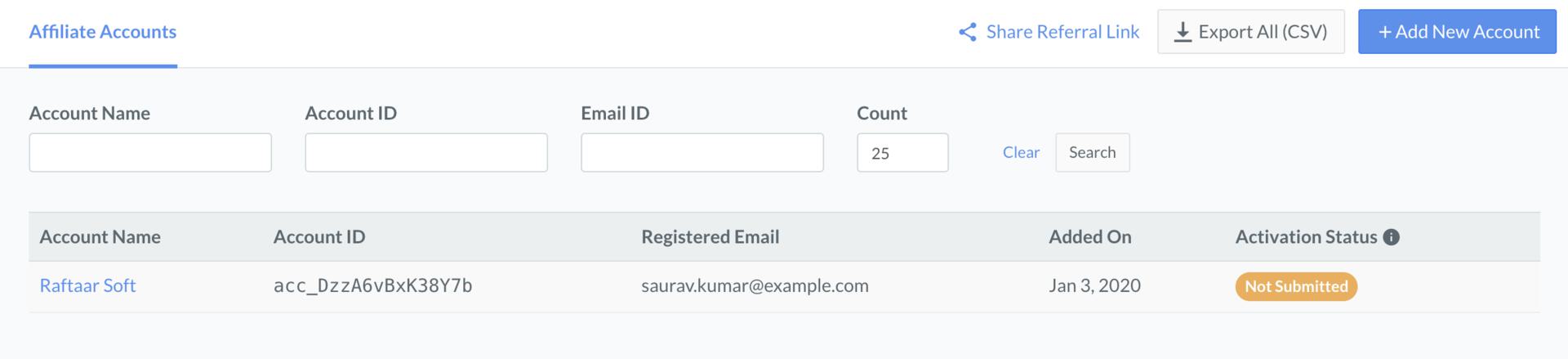 * To get started, the Sub-merchants referred for `Payment` products, must proceed to complete the Account Activation process by using their Razorpay account credentials.
**Handy Tips**
You can use the `Switch` option to access the Sub-merchant's account. Once you switch to the Dashboard, you can perform all the actions that the Sub-merchant can perform.
### Bulk Upload Multiple Sub-merchants
You can send invites to multiple users using the **Bulk Upload** option. Upload an XLSX or CSV file with the Dashboard's required data. This sends a single sign up invitation link to multiple affiliate accounts in bulk. This enables your Sub-merchants to sign up and register on Razorpay.
To view and understand the file format requirements, download the [sample template](https://curlec.com/docs/build/browser/assets/images/sample_invite_submerchant_batch.xlsx). The account creation template contains the following headers.
`account_name` *optional*
: Name of the Sub-merchant's account.
`email` *mandatory*
: The email address of the Sub-merchant.
**Watch Out!**
* Do not modify field names/headers (`account_name` and `email`) in a batch as it might result in an upload failure.
* There should be **only 1** sheet in the file.
* The size of the file can be up to 50 MB. You can add up to 5,000 rows in a particular file. The links will be processed in the same sequence as listed in the file.
1. Log in to the Dashboard.
2. Click **Partner** and navigate to **Affiliate Accounts**.
3. Click **+ Add New Accounts**.
4. Select **Razorpay Curlec Payments**.
5. Shift to the **Add Multiple Accounts** tab.
6. Click the **click to upload** button. In the pop-up window that appears, drag-drop the file over the highlighted area or select your file from your system. To view and understand the file format requirements, download the sample template.
7. The file is validated for any associated errors and uploaded to the Razorpay Curlec server. Click **Invite contacts** to send invites to Affiliate accounts via email.
#### What Happens Next
Once the file is successfully processed, you will receive the account creation status via email. The email attachment will include both success and/or failure details for each account, including the error code and exact reason for the failure.
* The newly added Sub-merchants will appear on your list on the Partner Dashboard with a default **Activation Status** as *Not Submitted*.
* To get started, the Sub-merchants referred for `Payment` products, must proceed to complete the Account Activation process by using their Razorpay Curlec account credentials.
## Sub-merchant Activation Status
You can track the account activation status of the Sub-merchant on your Dashboard under the **Affiliate Accounts** tab.
#### For Payment Products
| Status | Description |
| ------------------- | --------------------------------------------------------------------------------------------------------------------------------------------------------------------------------------------------------------------------------------------------------------------------------------------------------------------------------------------------------------------------------------------------------------------------------------- |
| Not Submitted | When you invite the Sub-merchant, and your affiliate account is successfully added, the activation status by default is `Not submitted`. This is the default status. |
| Instantly Activated | Your affiliate account sets the Razorpay account password and provides contact details, business details, and account details. Once these details are fully verified, the activation status moves to `Instantly Activated`. The Sub-merchants can start accepting payments once the account is instantly activated. However, the settlements will not be enabled. |
| Under Review | Your affiliate account submits business documents to Razorpay depending on their business type. Razorpay then starts with the KYC review process. This changes the activation status to `Under Review`. |
| Activated | The account activation status is `Activated` once the KYC documents are successfully verified. The payments made by the affiliate accounts before they submitted the KYC form and documents will be settled to your account.The account activation status is `Activated` once the documents are successfully verified. The payments made by the affiliate accounts before they submitted the documents will be settled to your account. |
### Related Information
* [Partners](/docs/partners)
* [About Service Partners](/docs/partners/service-partners)
* [Partner Commissions](/docs/partners/commissions)
* To get started, the Sub-merchants referred for `Payment` products, must proceed to complete the Account Activation process by using their Razorpay account credentials.
**Handy Tips**
You can use the `Switch` option to access the Sub-merchant's account. Once you switch to the Dashboard, you can perform all the actions that the Sub-merchant can perform.
### Bulk Upload Multiple Sub-merchants
You can send invites to multiple users using the **Bulk Upload** option. Upload an XLSX or CSV file with the Dashboard's required data. This sends a single sign up invitation link to multiple affiliate accounts in bulk. This enables your Sub-merchants to sign up and register on Razorpay.
To view and understand the file format requirements, download the [sample template](https://curlec.com/docs/build/browser/assets/images/sample_invite_submerchant_batch.xlsx). The account creation template contains the following headers.
`account_name` *optional*
: Name of the Sub-merchant's account.
`email` *mandatory*
: The email address of the Sub-merchant.
**Watch Out!**
* Do not modify field names/headers (`account_name` and `email`) in a batch as it might result in an upload failure.
* There should be **only 1** sheet in the file.
* The size of the file can be up to 50 MB. You can add up to 5,000 rows in a particular file. The links will be processed in the same sequence as listed in the file.
1. Log in to the Dashboard.
2. Click **Partner** and navigate to **Affiliate Accounts**.
3. Click **+ Add New Accounts**.
4. Select **Razorpay Curlec Payments**.
5. Shift to the **Add Multiple Accounts** tab.
6. Click the **click to upload** button. In the pop-up window that appears, drag-drop the file over the highlighted area or select your file from your system. To view and understand the file format requirements, download the sample template.
7. The file is validated for any associated errors and uploaded to the Razorpay Curlec server. Click **Invite contacts** to send invites to Affiliate accounts via email.
#### What Happens Next
Once the file is successfully processed, you will receive the account creation status via email. The email attachment will include both success and/or failure details for each account, including the error code and exact reason for the failure.
* The newly added Sub-merchants will appear on your list on the Partner Dashboard with a default **Activation Status** as *Not Submitted*.
* To get started, the Sub-merchants referred for `Payment` products, must proceed to complete the Account Activation process by using their Razorpay Curlec account credentials.
## Sub-merchant Activation Status
You can track the account activation status of the Sub-merchant on your Dashboard under the **Affiliate Accounts** tab.
#### For Payment Products
| Status | Description |
| ------------------- | --------------------------------------------------------------------------------------------------------------------------------------------------------------------------------------------------------------------------------------------------------------------------------------------------------------------------------------------------------------------------------------------------------------------------------------- |
| Not Submitted | When you invite the Sub-merchant, and your affiliate account is successfully added, the activation status by default is `Not submitted`. This is the default status. |
| Instantly Activated | Your affiliate account sets the Razorpay account password and provides contact details, business details, and account details. Once these details are fully verified, the activation status moves to `Instantly Activated`. The Sub-merchants can start accepting payments once the account is instantly activated. However, the settlements will not be enabled. |
| Under Review | Your affiliate account submits business documents to Razorpay depending on their business type. Razorpay then starts with the KYC review process. This changes the activation status to `Under Review`. |
| Activated | The account activation status is `Activated` once the KYC documents are successfully verified. The payments made by the affiliate accounts before they submitted the KYC form and documents will be settled to your account.The account activation status is `Activated` once the documents are successfully verified. The payments made by the affiliate accounts before they submitted the documents will be settled to your account. |
### Related Information
* [Partners](/docs/partners)
* [About Service Partners](/docs/partners/service-partners)
* [Partner Commissions](/docs/partners/commissions)