> ## Documentation Index
> Fetch the complete documentation index at: https://doc-test-my.mintlify.site/llms.txt
> Use this file to discover all available pages before exploring further.
# Items Dashboard
> Create, update and delete Items using Razorpay Dashboard.
Items are products or services that you can add to [Invoices](/docs/payments/invoices) and charge to customers. You can create an item on your Dashboard from **Invoice** → **Items**. Once created, it appears on the list of items in the Dashboard.
## Create an Item
To create an item via Dashboard:
1. Log in to the Dashboard.
2. Navigate to **Invoices** → **Items**.
3. Click **New Item**.
4. Enter the following:
1. **Name**
2. **Rate**
3. **Description**
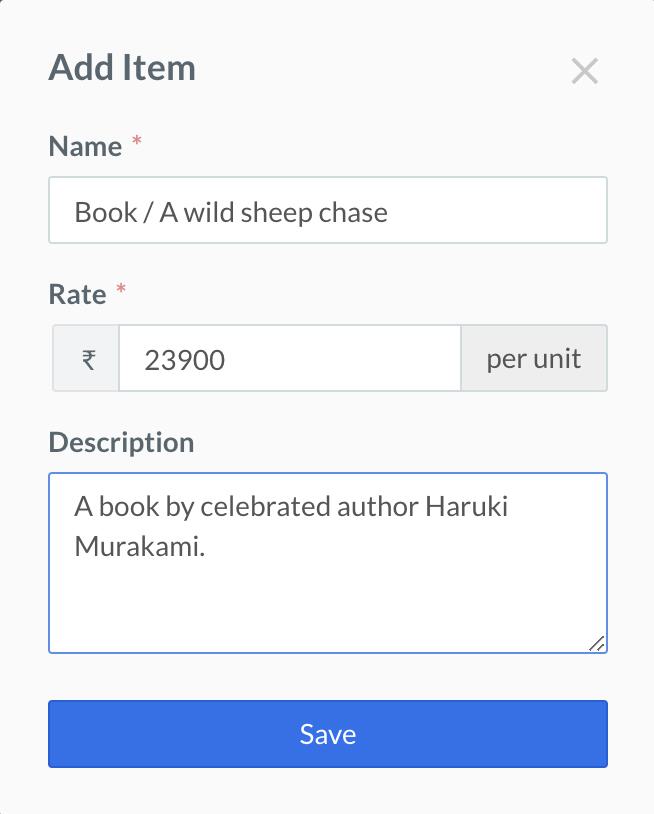 Once an item is created, it will appear on the list of created item and also in the drop-down menu at the time of invoice creation.
 ## Edit an Item
To update the details of an item:
1. Navigate to **Invoices** → **Items**.
2. In the item list, click on the desired **Item Id**.
3. In the **Edit Item** page, enter the following:
1. **Name**
2. **Rate**
3. **Description**
4. Click **Save**.
## Delete an Item
To delete an item:
1. Navigate to **Invoices** → **Items**.
2. Hover over the desired item and click **delete**.
## Edit an Item
To update the details of an item:
1. Navigate to **Invoices** → **Items**.
2. In the item list, click on the desired **Item Id**.
3. In the **Edit Item** page, enter the following:
1. **Name**
2. **Rate**
3. **Description**
4. Click **Save**.
## Delete an Item
To delete an item:
1. Navigate to **Invoices** → **Items**.
2. Hover over the desired item and click **delete**.
 **Watch Out!**
You cannot delete an item with which invoices have already been created.
**Watch Out!**
You cannot delete an item with which invoices have already been created.