> ## Documentation Index
> Fetch the complete documentation index at: https://doc-test-my.mintlify.site/llms.txt
> Use this file to discover all available pages before exploring further.
# Integration Steps
> Steps to integrate your Android application with Razorpay Android Standard SDK.
Follow these steps to integrate your Android application:
Integrate Android Standard Checkout.
Test the integration by making a test payment.
Check the go-live checklist.
**Watch Out!**
The Android app must have a `minSDKversion` of 19 or higher. If you want to support devices below API level 19, you must override `minSDKversion`. Use the sample code below to override `minSDKversion`:
```java Override minSDK theme={null}
```
## 1. Build Integration
Follow the steps given below:
To install the SDK in your Android project:
Add the code given below to your project's top-level `build.gradle` file:
This gives access to the SDK library.
```java build.gradle theme={null}
repositories {
mavenCentral()
}
dependencies {
implementation 'com.razorpay:checkout:1.6.40'
}
```
**Handy Tips**
From version 1.6.40 onwards, the latest version is automatically updated, eliminating the need for manual updates.
Add your `` dynamically using Checkout's `setKeyId()` method. You can generate the [API Keys](/docs/payments/dashboard/account-settings/api-keys#generate-api-keys) from the Dashboard.
To quickly load the `Checkout` form, the `preload` method of `Checkout` must be called much earlier than the other methods in the payment flow. The loading time of the preload resources can vary depending on your network's bandwidth.
```java Java theme={null}
public class PaymentActivity extends Activity {
// ...
@Override
public void onCreate(Bundle savedInstanceState) {
super.onCreate(savedInstanceState);
/**
* Preload payment resources
*/
Checkout.preload(getApplicationContext());
// ...
checkout.setKeyID("");
// ...
}
}
```
```java Kotlin theme={null}
class PaymentActivity: Activity(), PaymentResultWithDataListener, ExternalWalletListener {
// .....
override fun onCreate(savedInstanceState: Bundle?) {
super.onCreate(savedInstanceState)
setContentView(R.layout.activity_payment)
/*
* To ensure faster loading of the Checkout form,
* call this method as early as possible in your checkout flow
* */
Checkout.preload(applicationContext)
val co = Checkout()
// apart from setting it in AndroidManifest.xml, keyId can also be set
// programmatically during runtime
co.setKeyID("rzp_live_XXXXXXXXXXXXXX")
}
//......
}
```
**Watch Out!**
It is recommended to send the API Key ID from your server-side as app-related metadata fetch. Do not add API Keys in the `AndroidManifest` file.
If you are using Proguard for your builds, you must add the following lines to your `proguard-rules.pro` file.
```java theme={null}
-keepclassmembers class * {
@android.webkit.JavascriptInterface ;
}
-keepattributes JavascriptInterface
-keepattributes *Annotation*
-dontwarn com.razorpay.**
-keep class com.razorpay.** {*;}
-optimizations !method/inlining/*
-keepclasseswithmembers class * {
public void onPayment*(...);
}
```
Call `Checkout.sdkCheckIntegration(activity)` to check the health of integration. This will also let you know if the SDK version is outdated. This will only appear in debug mode and not in the release.
**Order is an important step in the payment process.**
* An order should be created for every payment.
* You can create an order using the [Orders API](#api-sample-code). It is a server-side API call. Know how to [authenticate](/docs/payments/dashboard/account-settings/api-keys#generate-api-keys) Orders API.
* The `order_id` received in the response should be passed to the checkout. This ties the order with the payment and secures the request from being tampered.
**Watch Out!**
Payments made without an `order_id` cannot be captured and will be automatically refunded. You must create an order before initiating payments to ensure proper payment processing.
### API Sample Code
Use this endpoint to create an order using the Orders API.
`POST /orders`
```bash Curl theme={null}
curl -X POST https://api.razorpay.com/v1/orders
-U [YOUR_KEY_ID]:[YOUR_KEY_SECRET]
-H 'content-type:application/json'
-d '{
"amount": 50000,
"currency": "MYR",
"receipt": "qwsaq1",
"partial_payment": true,
"first_payment_min_amount": 230
}'
```
```java Java theme={null}
RazorpayClient razorpay = new RazorpayClient("[YOUR_KEY_ID]", "[YOUR_KEY_SECRET]");
JSONObject orderRequest = new JSONObject();
orderRequest.put("amount", 50000); // amount in the smallest currency unit
orderRequest.put("currency", "MYR");
orderRequest.put("receipt", "order_rcptid_11");
Order order = razorpay.Orders.create(orderRequest);
} catch (RazorpayException e) {
// Handle Exception
System.out.println(e.getMessage());
}
```
```python Python theme={null}
import razorpay
client = razorpay.Client(auth=("YOUR_ID", "YOUR_SECRET"))
DATA = {
"amount": 50000,
"currency": "MYR",
"receipt": "receipt#1",
"notes": {
"key1": "value3",
"key2": "value2"
}
}
client.order.create(data=DATA)
```
```php PHP theme={null}
$api = new Api($key_id, $secret);
$api->order->create(array('receipt' => '123', 'amount' => 50000, 'currency' => 'MYR', 'notes'=> array('key1'=> 'value3','key2'=> 'value2')));
```
```csharp .NET theme={null}
RazorpayClient client = new RazorpayClient(your_key_id, your_secret);
Dictionary options = new Dictionary();
options.Add("amount", 50000); // amount in the smallest currency unit
options.add("receipt", "order_rcptid_11");
options.add("currency", "MYR");
Order order = client.Order.Create(options);
```
```ruby Ruby theme={null}
require "razorpay"
Razorpay.setup('YOUR_KEY_ID', 'YOUR_SECRET')
options = amount: 50000, currency: 'MYR', receipt: ''
order = Razorpay::Order.create
```
```javascript Node.js theme={null}
var instance = new Razorpay({ key_id: 'YOUR_KEY_ID', key_secret: 'YOUR_SECRET' })
instance.orders.create({
amount: 50000,
currency: "MYR",
receipt: "receipt#1",
notes: {
key1: "value3",
key2: "value2"
}
})
```
```go Go theme={null}
import ( razorpay "github.com/razorpay/razorpay-go" )
client := razorpay.NewClient("YOUR_KEY_ID", "YOUR_SECRET")
data := map[string]interface{}{
"amount": 50000,
"currency": "MYR",
"receipt": "some_receipt_id"
}
body, err := client.Order.Create(data)
```
```json Success Response theme={null}
{
"id": "order_IluGWxBm9U8zJ8",
"entity": "order",
"amount": 50000,
"amount_paid": 0,
"amount_due": 50000,
"currency": "MYR",
"receipt": "rcptid_11",
"offer_id": null,
"status": "created",
"attempts": 0,
"notes": [],
"created_at": 1642662092
}
```
```json Failure Response theme={null}
{
"error": {
"code": "BAD_REQUEST_ERROR",
"description": "Order amount less than minimum amount allowed",
"source": "business",
"step": "payment_initiation",
"reason": "input_validation_failed",
"metadata": {},
"field": "amount"
}
}
```
`amount` *mandatory*
: `integer` The transaction amount, expressed in the currency subunit. For example, for an actual amount of , the value of this field should be `22225`.
`currency` *mandatory*
: `string` The currency in which the transaction should be made. See the [list of supported currencies](/docs/payments/international-payments#supported-currencies). Length must be of 3 characters.
`receipt` *optional*
: `string` Your receipt id for this order should be passed here. Maximum length is 40 characters.
`notes` *optional*
: `json object` Key-value pair that can be used to store additional information about the entity. Maximum 15 key-value pairs, 256 characters (maximum) each. For example, `"note_key": "Beam me up Scotty”`.
`partial_payment` *optional*
: `boolean` Indicates whether the customer can make a partial payment. Possible values:
* `true`: The customer can make partial payments.
* `false` (default): The customer cannot make partial payments.
`first_payment_min_amount` *optional*
: `integer` Minimum amount that must be paid by the customer as the first partial payment. For example, if an amount of is to be received from the customer in two installments of #1 - RM 5,000, #2 - RM 2,000, then you can set this value as `500000`. This parameter should be passed only if `partial_payment` is `true`.
Descriptions for the response parameters are present in the [Orders Entity](/docs/api/orders/entity) parameters table.
The error response parameters are available in the [API Reference Guide](/docs/api/orders/create).
There are two ways to pass the checkout parameters. You can either use `payloadhelper` or the `JSONObject` options. We recommend using `payloadhelper` to ensure that the right data types are used for the parameter values.
Create a `JSONObject` to send it to the SDK.
```java Java theme={null}
PayloadHelper payloadHelper = new PayloadHelper("MYR", 100, "order_XXXXXXXXX");
payloadHelper.setName("");
payloadHelper.setDescription("Description");
payloadHelper.setPrefillEmail("");
payloadHelper.setPrefillContact("");
payloadHelper.setPrefillCardNum("");
payloadHelper.setPrefillCardCvv("111");
payloadHelper.setPrefillCardExp("11/30");
payloadHelper.setPrefillMethod("card");
payloadHelper.setPrefillName("MerchantName");
payloadHelper.setSendSmsHash(true);
payloadHelper.setRetryMaxCount(4);
payloadHelper.setRetryEnabled(true);
payloadHelper.setColor("#000000");
payloadHelper.setAllowRotation(true);
payloadHelper.setRememberCustomer(true);
payloadHelper.setTimeout(10);
payloadHelper.setRedirect(true);
payloadHelper.setRecurring("1");
payloadHelper.setSubscriptionCardChange(true);
payloadHelper.setCustomerId("cust_XXXXXXXXXX");
payloadHelper.setCallbackUrl("https://accepts-posts.request");
payloadHelper.setSubscriptionId("sub_XXXXXXXXXX");
payloadHelper.setModalConfirmClose(true);
payloadHelper.setBackDropColor("#ffffff");
payloadHelper.setHideTopBar(true);
payloadHelper.setNotes(new JSONObject("{\"remarks\":\"Discount to customer\"}"));
payloadHelper.setReadOnlyEmail(true);
payloadHelper.setReadOnlyContact(true);
payloadHelper.setReadOnlyName(true);
payloadHelper.setImage("https://www.razorpay.com");
payloadHelper.setAmount(100);
payloadHelper.setCurrency("MYR");
payloadHelper.setOrderId("order_XXXXXXXXXXXXXX");
```
```java Kotlin theme={null}
val payloadHelper = PayloadHelper("MYR", 100, "order_XXXXXXXXX")
payloadHelper.name = ""
payloadHelper.description = "Description"
payloadHelper.prefillEmail = ""
payloadHelper.prefillContact = ""
payloadHelper.prefillCardNum = ""
payloadHelper.prefillCardCvv = "111"
payloadHelper.prefillCardExp = "11/30"
payloadHelper.prefillMethod = "card"
payloadHelper.prefillName = "MerchantName"
payloadHelper.sendSmsHash = true
payloadHelper.retryMaxCount = 4
payloadHelper.retryEnabled = true
payloadHelper.color = "#000000"
payloadHelper.allowRotation = true
payloadHelper.rememberCustomer = true
payloadHelper.timeout = 10
payloadHelper.redirect = true
payloadHelper.recurring = "1"
payloadHelper.subscriptionCardChange = true
payloadHelper.customerId = "cust_XXXXXXXXXX"
payloadHelper.callbackUrl = "https://accepts-posts.request"
payloadHelper.subscriptionId = "sub_XXXXXXXXXX"
payloadHelper.modalConfirmClose = true
payloadHelper.backDropColor = "#ffffff"
payloadHelper.hideTopBar = true
payloadHelper.notes = JSONObject("{\"remarks\":\"Discount to customer\"}")
payloadHelper.readOnlyEmail = true
payloadHelper.readOnlyContact = true
payloadHelper.readOnlyName = true
payloadHelper.image = "https://www.razorpay.com"
// these values are set mandatorily during object initialization. Those values can be overridden like this
payloadHelper.amount=100
payloadHelper.currency="MYR"
payloadHelper.orderId = "order_XXXXXXXXXXXXXX"
```
If you want to create certain options that are not available, add them to the `JSONObject` we get from `payloadHelper.getJson()`.
You can alternatively use the JSONObject options given below.
Create an instance of the `Checkout` and pass the payment details and options as a `JSONObject`. Ensure that you add the `order_id` generated in [Step 3](/docs/payments/payment-gateway/android-integration/standard/integration-steps#13-create-an-order-in-server).
```java Java theme={null}
public void startPayment() {
checkout.setKeyID("");
/**
* Instantiate Checkout
*/
Checkout checkout = new Checkout();
/**
* Set your logo here
*/
checkout.setImage(R.drawable.logo);
/**
* Reference to current activity
*/
final Activity activity = this;
/**
* Pass your payment options to the Razorpay Checkout as a JSONObject
*/
try {
JSONObject options = new JSONObject();
options.put("name", "Merchant Name");
options.put("description", "Reference No. #123456");
options.put("image", "http://example.com/image/rzp.jpg");
options.put("order_id", "order_DBJOWzybf0sJbb");//from response of step 3.
options.put("theme.color", "#3399cc");
options.put("currency", "MYR");
options.put("amount", "50000");//pass amount in currency subunits
options.put("prefill.email", "");
options.put("prefill.contact","");
JSONObject retryObj = new JSONObject();
retryObj.put("enabled", true);
retryObj.put("max_count", 4);
options.put("retry", retryObj);
checkout.open(activity, options);
} catch(Exception e) {
Log.e(TAG, "Error in starting Razorpay Checkout", e);
}
}
```
```java Kotlin theme={null}
private fun startPayment() {
/*
* You need to pass the current activity to let Razorpay create CheckoutActivity
* */
val activity:Activity = this
val co = Checkout()
try {
val options = JSONObject()
options.put("name","Razorpay Corp")
options.put("description","Demoing Charges")
//You can omit the image option to fetch the image from the Dashboard
options.put("image","http://example.com/image/rzp.jpg")
options.put("theme.color", "#3399cc");
options.put("currency","MYR");
options.put("order_id", "order_DBJOWzybf0sJbb");
options.put("amount","50000")//pass amount in currency subunits
val retryObj = new JSONObject();
retryObj.put("enabled", true);
retryObj.put("max_count", 4);
options.put("retry", retryObj);
val prefill = JSONObject()
prefill.put("email","")
prefill.put("contact","")
options.put("prefill",prefill)
co.open(activity,options)
}catch (e: Exception){
Toast.makeText(activity,"Error in payment: "+ e.message,Toast.LENGTH_LONG).show()
e.printStackTrace()
}
}
```
**Handy Tips**
When you paste the checkout options given above, the following error message appears: '`TAG` has private access in `androidx.fragment.app.FragmentActivity`'. You can resolve this by adding the following code:
```java Resolve TAG has private access theme={null}
public class MainActivity extends AppCompatActivity implements PaymentResultListener {
private static final String TAG = MainActivity.class.getSimpleName();
```
`Checkout.open()` launches the Checkout form where the customer completes the payment and returns the payment result via appropriate callbacks on the `PaymentResultListener`.
**Payment Options in JSONObject**:
All available options in the `Standard Web Checkout` are also available in Android.
You must pass these parameters in Checkout to initiate the payment.
`key` *mandatory*
: `string` API Key ID generated from the Dashboard.
`amount` *mandatory*
: `integer` The amount to be paid by the customer in sen. For example, if the amount is , enter `222250`.
`currency` *mandatory*
: `string` The currency in which the payment should be made by the customer. Length must be of 3 characters.
`name` *mandatory*
: `string` Your Business/Enterprise name shown on the Checkout form. For example, **Acme Corp**.
`description` *optional*
: `string` Description of the purchase item shown on the Checkout form. It should start with an alphanumeric character.
`image` *optional*
: `string` Link to an image (usually your business logo) shown on the Checkout form. Can also be a **base64** string if you are not loading the image from a network.
`order_id` *mandatory*
: `string` Order ID generated via [Orders API](/docs/api/orders).
`prefill`
: `object` You can prefill the following details at Checkout.
**Boost Conversions and Minimise Drop-offs**
* Autofill customer contact details, especially phone number to ease form completion. Include customer’s phone number in the `contact` parameter of the JSON request's `prefill` object. Format: +(country code)(phone number). Example: "contact": "+603112345678".
* This is not applicable if you do not collect customer contact details on your website before checkout, have Shopify stores or use any of the no-code apps.
`name` *optional*
: `string` Cardholder's name to be prefilled if customer is to make card payments on Checkout. For example, **Siti Aisyah**.
`email` *optional*
: `string` Email address of the customer.
`contact` *optional*
: `string` Phone number of the customer. The expected format of the phone number is `+ {country code}{phone number}`. If the country code is not specified, `60` will be used as the default value. This is particularly important while prefilling `contact` of customers with phone numbers issued outside Malaysia. **Examples**:
* +14155552671 (a valid non-Malaysian number)
* +603112345678 (a valid Malaysian number).
If 1113455567 is entered without the country code, `+60` is added to it as +601113455567.
`method` *optional*
: `string` Pre-selection of the payment method for the customer. Will only work if `contact` and `email` are also prefilled.
Possible value is `card`.
`notes` *optional*
: `object` Set of key-value pairs that can be used to store additional information about the payment. It can hold a maximum of 15 key-value pairs, each 256 characters long (maximum).
`theme`
: `object` Thematic options to modify the appearance of Checkout.
`color` *optional*
: `string` Enter your brand colour's HEX code to alter the text, payment method icons and CTA (call-to-action) button colour of the Checkout form.
`backdrop_color` *optional*
: `string` Enter a HEX code to change the Checkout's backdrop colour.
`modal`
: `object` Options to handle the Checkout modal.
`backdropclose` *optional*
: `boolean` Indicates whether clicking the translucent blank space outside the Checkout form should close the form. Possible values:
* `true`: Closes the form when your customer clicks outside the checkout form.
* `false` (default): Does not close the form when customer clicks outside the checkout form.
`escape` *optional*
: `boolean` Indicates whether pressing the **escape** key should close the Checkout form. Possible values:
* `true` (default): Closes the form when the customer presses the **escape** key.
* `false`: Does not close the form when the customer presses the **escape** key.
`handleback` *optional*
: `boolean` Determines whether Checkout must behave similar to the browser when back button is pressed. Possible values:
* `true` (default): Checkout behaves similarly to the browser. That is, when the browser's back button is pressed, the Checkout also simulates a back press. This happens as long as the Checkout modal is open.
* `false`: Checkout does not simulate a back press when browser's back button is pressed.
`confirm_close` *optional*
: `boolean` Determines whether a confirmation dialog box should be shown if customers attempts to close Checkout. Possible values:
* `true`: Confirmation dialog box is shown.
* `false` (default): Confirmation dialog box is not shown.
`ondismiss` *optional*
: `function` Used to track the status of Checkout. You can pass a modal object with `ondismiss: function()\{\}` as options. This function is called when the modal is closed by the user. If `retry` is `false`, the `ondismiss` function is triggered when checkout closes, even after a failure.
`animation` *optional*
: `boolean` Shows an animation before loading of Checkout. Possible values:
* `true`(default): Animation appears.
* `false`: Animation does not appear.
`subscription_id` *optional*
: `string` If you are accepting recurring payments using Razorpay Checkout, you should pass the relevant `subscription_id` to the Checkout. Know more about [Subscriptions on Checkout](/docs/api/payments/subscriptions-custom#checkout-integration).
`subscription_card_change` *optional*
: `boolean` Permit or restrict customer from changing the card linked to the subscription. You can also do this from the [hosted page](/docs/payments/subscriptions/payment-retries#update-the-payment-method-via-our-hosted-page). Possible values:
* `true`: Allow the customer to change the card from Checkout.
* `false` (default): Do not allow the customer to change the card from Checkout.
`callback_url` *optional*
: `string` Customers will be redirected to this URL on successful payment. Ensure that the domain of the Callback URL is allowlisted. This parameter is mandatory for FPX payments.
`redirect` *optional*
: `boolean` Determines whether to post a response to the event handler post payment completion or redirect to Callback URL. `callback_url` and `redirect` parameters are mandatory for FPX payments. Possible values:
* `true`: Customer is redirected to the specified callback URL in case of payment failure. For FPX payments, the `redirect` parameter should always be sent as `true`.
* `false` (default): Customer is shown the Checkout popup to retry the payment.
`customer_id` *optional*
: `string` Unique identifier of customer.
`remember_customer` *optional*
: `boolean` Determines whether to allow saving of cards. Can also be configured via the [Dashboard](/docs/payments/dashboard/account-settings/checkout-features#flash-checkout). Possible values:
* `true`: Enables card saving feature.
* `false` (default): Disables card saving feature.
`timeout` *optional*
: `integer` Sets a timeout on Checkout, in seconds. After the specified time limit, the customer will not be able to use Checkout.
**Watch Out!**
Some browsers may pause `JavaScript` timers when the user switches tabs, especially in power saver mode. This can cause the checkout session to stay active beyond the set timeout duration.
`readonly`
: `object` Marks fields as read-only.
`contact` *optional*
: `boolean` Used to set the `contact` field as readonly. Possible values:
* `true`: Customer will not be able to edit this field.
* `false` (default): Customer will be able to edit this field.
`email` *optional*
: `boolean` Used to set the `email` field as readonly. Possible values:
* `true`: Customer will not be able to edit this field.
* `false` (default): Customer will be able to edit this field.
`name` *optional*
: `boolean` Used to set the `name` field as readonly. Possible values:
* `true`: Customer will not be able to edit this field.
* `false` (default): Customer will be able to edit this field.
`hidden`
: `object` Hides the contact details.
`contact` *optional*
: `boolean` Used to set the `contact` field as optional. Possible values:
* `true`: Customer will not be able to view this field.
* `false` (default): Customer will be able to view this field.
`email` *optional*
: `boolean` Used to set the `email` field as optional. Possible values:
* `true`: Customer will not be able to view this field.
* `false` (default): Customer will be able to view this field.
`send_sms_hash` *optional*
: `boolean` Used to auto-read OTP for cards. Applicable from Android SDK version 1.5.9 and above. Possible values:
* `true`: OTP is auto-read.
* `false` (default): OTP is not auto-read.
`allow_rotation` *optional*
: `boolean` Used to rotate payment page as per screen orientation. Applicable from Android SDK version 1.6.4 and above. Possible values:
* `true`: Payment page can be rotated.
* `false` (default): Payment page cannot be rotated.
`config` *optional*
: `object` Parameters that enable checkout configuration. Know more about how to [configure payment methods on Razorpay standard checkout](/docs/payments/payment-gateway/web-integration/standard/configure-payment-methods).
`display`
: `object` Child parameter that enables configuration of checkout display language.
`language`
: `string` The language in which checkout should be displayed. Possible value is `en`: English.
**Handy Tips**
If you call the payment start method inside a fragment, ensure that the `fragment`'s parent `activity` implements the `PaymentResultListener` interface.
You have the option to implement `PaymentResultListener` or `PaymentResultWithDataListener` to receive callbacks for the payment result.
* `PaymentResultListener` provides only `payment_id` as the payment result.
* `PaymentResultWithDataListener` provides additional payment data such as email and contact of the customer, along with the `order_id`, `payment_id`, `signature` and more.
Use the code below to import the function in your `.java` file. This should be added at the beginning of the file.
```java PaymentResultListener theme={null}
import com.razorpay.PaymentResultListener
```
```java PaymentResultWithDataListener theme={null}
import com.razorpay.PaymentResultWithDataListener;
```
Given below are the sample codes for implementation:
```java Java - PaymentResultListener theme={null}
public class PaymentActivity extends Activity implements PaymentResultListener {
// ...
@Override
public void onPaymentSuccess(String razorpayPaymentID) {
/**
* Add your logic here for a successful payment response
*/
}
@Override
public void onPaymentError(int code, String response) {
/**
* Add your logic here for a failed payment response
*/
}
}
```
```kotlin Kotlin - PaymentResultListener theme={null}
class PaymentActivity: Activity(), PaymentResultListener {
// ...
override fun onPaymentError(errorCode: Int, response: String?) {
/**
* Add your logic here for a failed payment response
*/
}
override fun onPaymentSuccess(razorpayPaymentId: String?) {
/**
* Add your logic here for a successful payment response
*/
}
```
```java Java - PaymentResultWithDataListener theme={null}
public class PaymentActivity extends Activity implements PaymentResultWithDataListener {
// ...
@Override
public void onPaymentSuccess(String razorpayPaymentID, PaymentData paymentData) {
/**
* Add your logic here for a successful payment response
*/
}
@Override
public void onPaymentError(int code, String response) {
/**
* Add your logic here for a failed payment response
*/
}
}
```
```kotlin Kotlin - PaymentResultWithDataListener theme={null}
class PaymentActivity: Activity(), PaymentResultWithDataListener {
// ...
override fun onPaymentError(errorCode: Int, response: String?) {
/**
* Add your logic here for a failed payment response
*/
}
override fun onPaymentSuccess(razorpayPaymentId: String?, PaymentData: PaymentData) {
/**
* Add your logic here for a successful payment response
*/
}
```
**Watch Out!**
* Razorpay's payment process takes place in a new activity. Since there are two activities involved, your activity can get corrupted or destroyed if the device is low on memory. These two methods should not depend on any variables not set through your life cycle hooks.
* It is recommended that you test everything by enabling "Don't Keep Activities" in **Developer Options** under **Settings**.
The error codes are returned in the `onPaymentError` method:
| Error\_Code | Description |
| --------------------------- | ---------------------------------------------------------------------- |
| `Checkout.NETWORK_ERROR` | There was a network error, for example, loss of internet connectivity. |
| `Checkout.INVALID_OPTIONS` | An issue with options passed in `checkout.open`. |
| `Checkout.PAYMENT_CANCELED` | The user canceled the payment. |
| `Checkout.TLS_ERROR` | The device does not support TLS v1.1 or TLS v1.2. |
The SDK stores customer-specific data such as email, contact number, and user-session cookies if the customer wants to make another payment in the same session. You can delete such sensitive information before another customer logs into the app.
To erase customer data from the app, you can call the following method anywhere in your app.
```java Erase Customer Data theme={null}
Checkout.clearUserData(Context)
```
A successful payment returns the following fields to the Checkout form.
* You need to store these fields in your server.
* You can confirm the authenticity of these details by verifying the signature in the next step.
```json Success Callback theme={null}
{
"razorpay_payment_id": "pay_29QQoUBi66xm2f",
"razorpay_order_id": "order_9A33XWu170gUtm",
"razorpay_signature": "9ef4dffbfd84f1318f6739a3ce19f9d85851857ae648f114332d8401e0949a3d"
}
```
`razorpay_payment_id`
: `string` Unique identifier for the payment returned by Checkout **only** for successful payments.
`razorpay_order_id`
: `string` Unique identifier for the order returned by Checkout.
`razorpay_signature`
: `string` Signature returned by the Checkout. This is used to verify the payment.
This is a mandatory step to confirm the authenticity of the details returned to the Checkout form for successful payments.
1. Create a signature in your server using the following attributes:
* `order_id`: Retrieve the `order_id` from your server. Do not use the `razorpay_order_id` returned by Checkout.
* `razorpay_payment_id`: Returned by Checkout.
* `key_secret`: Available in your server. The `key_secret` that was generated from the [Dashboard](/docs/payments/dashboard/account-settings/api-keys#generate-api-keys).
2. Use the SHA256 algorithm, the `razorpay_payment_id` and the `order_id` to construct a HMAC hex digest as shown below:
```html HMAC Hex Digest theme={null}
generated_signature = hmac_sha256(order_id + "|" + razorpay_payment_id, secret);
if (generated_signature == razorpay_signature) {
payment is successful
}
```
3. If the signature you generate on your server matches the `razorpay_signature` returned to you by the Checkout form, the payment received is from an authentic source.
Given below is the sample code for payment signature verification:
```java Java theme={null}
RazorpayClient razorpay = new RazorpayClient("[YOUR_KEY_ID]", "[YOUR_KEY_SECRET]");
String secret = "EnLs21M47BllR3X8PSFtjtbd";
JSONObject options = new JSONObject();
options.put("razorpay_order_id", "order_IEIaMR65cu6nz3");
options.put("razorpay_payment_id", "pay_IH4NVgf4Dreq1l");
options.put("razorpay_signature", "0d4e745a1838664ad6c9c9902212a32d627d68e917290b0ad5f08ff4561bc50f");
boolean status = Utils.verifyPaymentSignature(options, secret);
```
```php PHP theme={null}
$api = new Api($key_id, $secret);
$api->utility->verifyPaymentSignature(array('razorpay_order_id' => $razorpayOrderId, 'razorpay_payment_id' => $razorpayPaymentId, 'razorpay_signature' => $razorpaySignature));
```
```ruby Ruby theme={null}
require "razorpay"
Razorpay.setup('YOUR_KEY_ID', 'YOUR_SECRET')
payment_response = {
razorpay_order_id: 'order_IEIaMR65cu6nz3',
razorpay_payment_id: 'pay_IH4NVgf4Dreq1l',
razorpay_signature: '0d4e745a1838664ad6c9c9902212a32d627d68e917290b0ad5f08ff4561bc50f'
}
Razorpay::Utility.verify_payment_signature(payment_response)
```
```python Python theme={null}
import razorpay
client = razorpay.Client(auth=("YOUR_ID", "YOUR_SECRET"))
client.utility.verify_payment_signature({
'razorpay_order_id': razorpay_order_id,
'razorpay_payment_id': razorpay_payment_id,
'razorpay_signature': razorpay_signature
})
```
```c .NET theme={null}
RazorpayClient client = new RazorpayClient("[YOUR_KEY_ID]", "[YOUR_KEY_SECRET]");
Dictionary options = new Dictionary();
options.Add("razorpay_order_id", "order_IEIaMR65");
options.Add("razorpay_payment_id", "pay_IH4NVgf4Dreq1l");
options.Add("razorpay_signature", "0d4e745a1838664ad6c9c9902212a32d627d68e917290b0ad5f08ff4561bc50");
Utils.verifyPaymentSignature(options);
```
```javascript Node.js theme={null}
var instance = new Razorpay({ key_id: 'YOUR_KEY_ID', key_secret: 'YOUR_SECRET' })
var { validatePaymentVerification, validateWebhookSignature } = require('./dist/utils/razorpay-utils');
validatePaymentVerification({"order_id": razorpayOrderId, "payment_id": razorpayPaymentId }, signature, secret);
```
```go Go theme={null}
import ( razorpay "github.com/razorpay/razorpay-go" )
client := razorpay.NewClient("YOUR_KEY_ID", "YOUR_SECRET")
params := map[string]interface{}{
"razorpay_order_id": "order_IEIaMR65cu6nz3",
"razorpay_payment_id": "pay_IH4NVgf4Dreq1l",
}
signature := "0d4e745a1838664ad6c9c9902212a32d627d68e917290b0ad5f08ff4561bc50f";
secret := "EnLs21M47BllR3X8PSFtjtbd";
utils.VerifyPaymentSignature(params, signature, secret)
```
After you have completed the integration, you can [set up webhooks](/docs/webhooks/setup-edit-payments), make test payments, replace the test key with the live key and integrate with other [APIs](/docs/api).
**Handy Tips**
On the Razorpay Dashboard, ensure that the payment status is `captured`. Refer to the payment capture settings page to know how to [capture payments automatically](/docs/payments/payments/capture-settings).
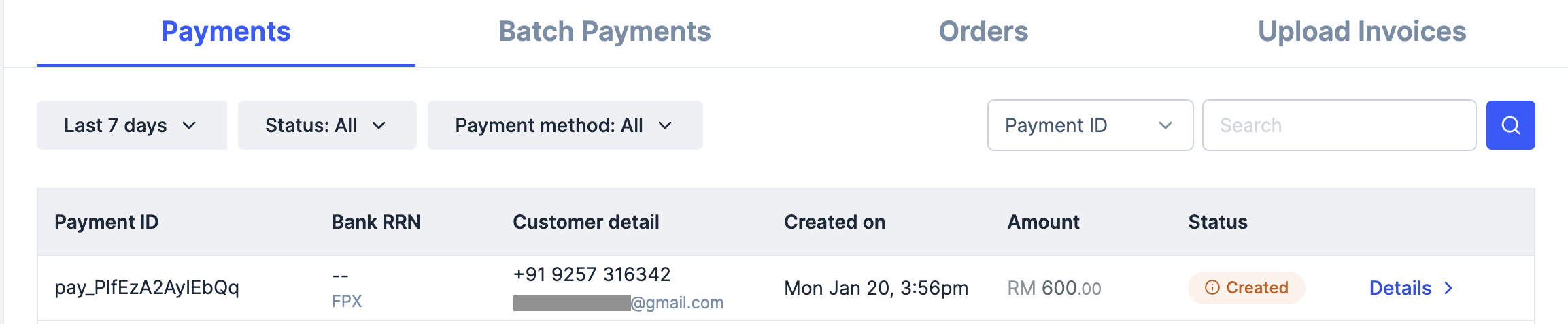
To verify the payment status from the Razorpay Dashboard:
1. Log in to the Razorpay Dashboard and navigate to **Transactions** → **Payments**.
2. Check if a **Payment Id** has been generated and note the status. In case of a successful payment, the status is marked as **Captured**.
 You can use Razorpay webhooks to configure and receive notifications when a specific event occurs. When one of these events is triggered, we send an HTTP POST payload in JSON to the webhook's configured URL. Know how to [set up webhooks.](/docs/webhooks/setup-edit-payments)
#### Example
If you have subscribed to the `order.paid` webhook event, you will receive a notification every time a customer pays you for an order.
[Poll Payment APIs](/docs/api/payments/fetch-all-payments) to check the payment status.
## 2. Test Integration
After the integration is complete, a **Pay** button appears on your webpage/app.
Click the button and make a test transaction to ensure the integration is working as expected. You can start accepting actual payments from your customers once the test transaction is successful.
**Watch Out!**
This is a mock payment page that uses your test API keys, test card and payment details.
* Ensure you have entered only your [Test Mode API keys](/docs/payments/dashboard/account-settings/api-keys#generate-api-keys) in the Checkout code.
* Test mode features a mock bank page with **Success** and **Failure** buttons to replicate the live payment experience.
* No real money is deducted due to the usage of test API keys. This is a simulated transaction.
Following are all the payment modes that the customer can use to complete the payment on the Checkout. Some of them are available by default, while others may require approval from us. Raise a request from the Dashboard to enable such payment methods.
| Payment Method | Code | Availability |
| -------------------------------------------------------------- | -------- | ------------ |
| [Debit and Credit Cards](/docs/payments/payment-methods/cards) | `card` | ✓ |
| [FPX](/docs/payments/payment-methods/fpx) | `fpx` | ✓ |
| [Wallets](/docs/payments/payment-methods/wallets) | `wallet` | ✓ |
You can make test payments using one of the payment methods configured at the Checkout.
You can select any of the listed banks. After choosing a bank, Razorpay Curlec will redirect to a mock page where you can make the payment a `success` or a `failure`. Since this is Test Mode, we will not redirect you to the bank login portals.
You can select any of the listed wallets. After choosing a wallet, you will be redirected to a mock page where you can make the payment `success` or a `failure`. Since this is Test Mode, we will not redirect you to the wallet login portals.
**Watch Out!**
iOS integration for Touch'n Go wallet is currently unavailable. We will be adding support for it soon.
You can use one of the following test cards to test transactions for your integration in Test Mode.
| Card Network | Card Number | CVV & Expiry Date |
| ------------ | ------------------- | --------------------------------------- |
| Mastercard | 5272 0088 0623 5704 | Use a random CVV and any future date ^^ |
| Visa | 4842 7930 0208 6571 | |
Check the following lists:
* [Supported Card Networks](/docs/payments/payment-methods/cards).
* [Cards Error Codes](/docs/errors/payments/cards).
## 3. Go-live Checklist
Check the go-live checklist for Razorpay Android Standard SDK. Consider these steps before taking the integration live.
Perform an end-to-end simulation of funds flow in the Test Mode. Once confident that the integration is working as expected, switch to the Live Mode and start accepting payments from customers.
**Watch Out!**
Ensure you are switching your test API keys with API keys generated in Live Mode.
To generate API Keys in Live Mode on your Razorpay Dashboard:
1. Log in to the Razorpay Dashboard and switch to **Live Mode** on the menu.
2. Navigate to **Account & Settings** → **API Keys** → **Generate Key** to generate the API Key for Live Mode.
3. Download the keys and save them securely.
4. Replace the Test API Key with the Live Key in the Checkout code and start accepting actual payments.
You can use Razorpay webhooks to configure and receive notifications when a specific event occurs. When one of these events is triggered, we send an HTTP POST payload in JSON to the webhook's configured URL. Know how to [set up webhooks.](/docs/webhooks/setup-edit-payments)
#### Example
If you have subscribed to the `order.paid` webhook event, you will receive a notification every time a customer pays you for an order.
[Poll Payment APIs](/docs/api/payments/fetch-all-payments) to check the payment status.
## 2. Test Integration
After the integration is complete, a **Pay** button appears on your webpage/app.
Click the button and make a test transaction to ensure the integration is working as expected. You can start accepting actual payments from your customers once the test transaction is successful.
**Watch Out!**
This is a mock payment page that uses your test API keys, test card and payment details.
* Ensure you have entered only your [Test Mode API keys](/docs/payments/dashboard/account-settings/api-keys#generate-api-keys) in the Checkout code.
* Test mode features a mock bank page with **Success** and **Failure** buttons to replicate the live payment experience.
* No real money is deducted due to the usage of test API keys. This is a simulated transaction.
Following are all the payment modes that the customer can use to complete the payment on the Checkout. Some of them are available by default, while others may require approval from us. Raise a request from the Dashboard to enable such payment methods.
| Payment Method | Code | Availability |
| -------------------------------------------------------------- | -------- | ------------ |
| [Debit and Credit Cards](/docs/payments/payment-methods/cards) | `card` | ✓ |
| [FPX](/docs/payments/payment-methods/fpx) | `fpx` | ✓ |
| [Wallets](/docs/payments/payment-methods/wallets) | `wallet` | ✓ |
You can make test payments using one of the payment methods configured at the Checkout.
You can select any of the listed banks. After choosing a bank, Razorpay Curlec will redirect to a mock page where you can make the payment a `success` or a `failure`. Since this is Test Mode, we will not redirect you to the bank login portals.
You can select any of the listed wallets. After choosing a wallet, you will be redirected to a mock page where you can make the payment `success` or a `failure`. Since this is Test Mode, we will not redirect you to the wallet login portals.
**Watch Out!**
iOS integration for Touch'n Go wallet is currently unavailable. We will be adding support for it soon.
You can use one of the following test cards to test transactions for your integration in Test Mode.
| Card Network | Card Number | CVV & Expiry Date |
| ------------ | ------------------- | --------------------------------------- |
| Mastercard | 5272 0088 0623 5704 | Use a random CVV and any future date ^^ |
| Visa | 4842 7930 0208 6571 | |
Check the following lists:
* [Supported Card Networks](/docs/payments/payment-methods/cards).
* [Cards Error Codes](/docs/errors/payments/cards).
## 3. Go-live Checklist
Check the go-live checklist for Razorpay Android Standard SDK. Consider these steps before taking the integration live.
Perform an end-to-end simulation of funds flow in the Test Mode. Once confident that the integration is working as expected, switch to the Live Mode and start accepting payments from customers.
**Watch Out!**
Ensure you are switching your test API keys with API keys generated in Live Mode.
To generate API Keys in Live Mode on your Razorpay Dashboard:
1. Log in to the Razorpay Dashboard and switch to **Live Mode** on the menu.
2. Navigate to **Account & Settings** → **API Keys** → **Generate Key** to generate the API Key for Live Mode.
3. Download the keys and save them securely.
4. Replace the Test API Key with the Live Key in the Checkout code and start accepting actual payments.
After payment is `authorized`, you need to capture it to settle the amount to your bank account as per the settlement schedule. Payments that are not captured are auto-refunded after a fixed time.
**Watch Out**
* You should deliver the products or services to your customers only after the payment is captured. Razorpay automatically refunds all the uncaptured payments.
* You can track the payment status using our [Fetch a Payment API](/docs/api/payments#fetch-a-payment) or webhooks.
Authorized payments can be automatically captured. You can auto-capture all payments [using global settings](/docs/payments/payments/capture-settings#auto-capture-all-payments) on the Razorpay Dashboard. Know more about [capture settings for payments](/docs/payments/payments/capture-settings).
**Watch Out!**
Payment capture settings work only if you have integrated with Orders API on your server side. Know more about the [Orders API](/docs/api/orders/create).
Each authorized payment can also be captured individually. You can manually capture payments using [Payment Capture API](/docs/api/payments/capture) or [Dashboard](/docs/payments/payments/dashboard#manually-capture-payments). Know more about [capture settings for payments](/docs/payments/payments/capture-settings).
Ensure you have [set up webhooks](/docs/webhooks/setup-edit-payments) in the live mode and configured the events for which you want to receive notifications.
**Implementation Considerations**
Webhooks are the primary and most efficient method for event notifications. They are delivered asynchronously in near real-time. For critical user-facing flows that need instant confirmation (like showing "Payment Successful" immediately), supplement webhooks with API verification.
**Recommended approach**
* Rely on webhooks for all automation, which can be asynchronous.
* If a critical user-facing flow requires instant status, but the webhook notification has not arrived within the time mandated by your business needs, perform an immediate API Fetch call ([Payments](/docs/api/payments/fetch-with-id), [Orders](/docs/api/orders/fetch-with-id) and [Refunds](/docs/api/refunds/fetch-specific-refund-payment)) to verify the status.
### Related Information
[Google Play's Data Safety](/docs/payments/payment-gateway/android-integration/standard/google-data-safety)