> ## Documentation Index
> Fetch the complete documentation index at: https://doc-test-my.mintlify.site/llms.txt
> Use this file to discover all available pages before exploring further.
# Payment Link States
> List of states of a Razorpay Payment Link and their significance.
A Payment Link starts in the `issued` state and moves through several states in its life cycle.
## Standard Payment Links
After a Standard Payment Link is created, you can track its status on your Dashboard on the Payment Link page. The diagram given below illustrates the life cycle of a Payment Link.
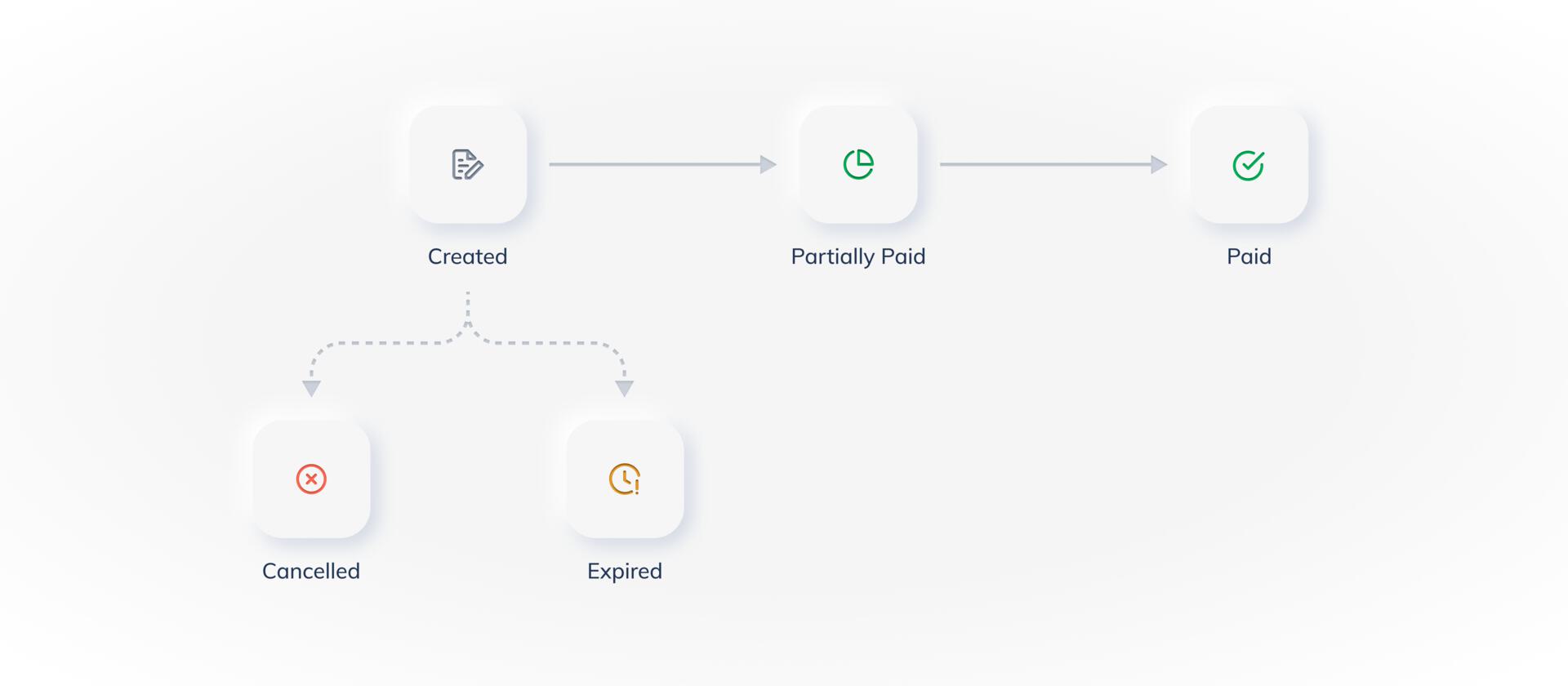 The table below lists the various states and their descriptions in the Payment Link life cycle:
| Status | Description | Next Steps |
| -------------- | --------------------------------------------------------------------------------------------------------------------------------------------------------------------------------------------------------------------------------- | ---------------------------------------------------------------------------------------------------------------------------------------- |
| Created | Indicates that the Payment Link has been created. Know more about [creating a Payment Link](/docs/payments/payment-links/create#create-a-standard-payment-link). | Start accepting payments by sending the Payment Link to the customers. |
| Partially Paid | Indicates that the customer has made a partial payment against the Payment Link. Know more about [enabling partial payments for Payment Links.](/docs/payments/payment-links/partial-payments) | Send a reminder to the customer to pay the next instalment. Know more about [sending reminders.](/docs/payments/payment-links/reminders) |
| Paid | Indicates that the Payment Link has been paid in full. | NA |
| Cancelled | Indicates that you have cancelled the Payment Link. Know more about [cancelling Payment Links.](/docs/payments/payment-links/cancel) | Customers can no longer pay using this Payment Link. Create a new Payment Link to start accepting payments (if required). |
| Expired | Indicates that the Payment Link has expired. You can set the expiry date and time while creating the Payment Link. Know more about [creating a Payment Link.](/docs/payments/payment-links/create#create-a-standard-payment-link) | This link is no longer accessible to the customers. Create a new Payment Link to start accepting payments (If required). |
**Handy Tips**
* You cannot delete a Payment Link. However, you can cancel it. Know more about [cancelling Payment Links](/docs/payments/payment-links/cancel).
* You can cancel a Payment Link only if it is in the `issued` state. You cannot cancel Payment Links in the `partially_paid` or `paid` state.
#### Related Information
The table below lists the various states and their descriptions in the Payment Link life cycle:
| Status | Description | Next Steps |
| -------------- | --------------------------------------------------------------------------------------------------------------------------------------------------------------------------------------------------------------------------------- | ---------------------------------------------------------------------------------------------------------------------------------------- |
| Created | Indicates that the Payment Link has been created. Know more about [creating a Payment Link](/docs/payments/payment-links/create#create-a-standard-payment-link). | Start accepting payments by sending the Payment Link to the customers. |
| Partially Paid | Indicates that the customer has made a partial payment against the Payment Link. Know more about [enabling partial payments for Payment Links.](/docs/payments/payment-links/partial-payments) | Send a reminder to the customer to pay the next instalment. Know more about [sending reminders.](/docs/payments/payment-links/reminders) |
| Paid | Indicates that the Payment Link has been paid in full. | NA |
| Cancelled | Indicates that you have cancelled the Payment Link. Know more about [cancelling Payment Links.](/docs/payments/payment-links/cancel) | Customers can no longer pay using this Payment Link. Create a new Payment Link to start accepting payments (if required). |
| Expired | Indicates that the Payment Link has expired. You can set the expiry date and time while creating the Payment Link. Know more about [creating a Payment Link.](/docs/payments/payment-links/create#create-a-standard-payment-link) | This link is no longer accessible to the customers. Create a new Payment Link to start accepting payments (If required). |
**Handy Tips**
* You cannot delete a Payment Link. However, you can cancel it. Know more about [cancelling Payment Links](/docs/payments/payment-links/cancel).
* You can cancel a Payment Link only if it is in the `issued` state. You cannot cancel Payment Links in the `partially_paid` or `paid` state.
#### Related Information