> ## Documentation Index
> Fetch the complete documentation index at: https://doc-test-my.mintlify.site/llms.txt
> Use this file to discover all available pages before exploring further.
# Apple Pay Standard Checkout
> Accept Apple Pay payments from customers with Razorpay Curlec Checkout.
Available in
🇮🇳 India
🇲🇾 Malaysia
🇸🇬 Singapore
🇺🇸 United States
Apple Pay is a secure, contactless payment method that allows customers to pay using their Apple devices with Face ID/Touch ID authentication. Once Apple Pay is enabled and integrated, it appears on your Checkout page as a payment option, providing a frictionless checkout experience for customers. Know more about [Apple Pay](https://www.apple.com/apple-pay/).
Integrating Apple Pay as a payment method on Checkout offers you the following advantages:
* **Higher Conversion Rates**: Up to 58% improvement in checkout conversion rates.
* **Reduced Friction**: Eliminate manual card entry with biometric authentication (Face ID/Touch ID).
* **Enhanced Security**: Benefit from Apple's tokenisation and liability shift protection.
* **Faster Checkout**: 45% reduction in checkout time for Apple device users.
* **Increased Average Order Value**: Potential 12% increase in transaction value.
* **Global Reach**: Accept payments from customers in 70+ countries.
## Prerequisites
Before enabling Apple Pay, ensure you have:
* A Malaysian business collecting payments in MYR.
* Cards enabled on your Razorpay Curlec account in Live Mode. Apple Pay is processed as a card payment, so card payments must already work.
* Razorpay Curlec Standard Checkout, [Payment Links](/docs/payments/payment-links), [Payment Pages](/docs/payments/payment-pages), [Invoices](/docs/payments/invoices) or an ecommerce plugin.
* An HTTPS-enabled website with TLS 1.2 or higher.
## Integrate Apple Pay on Standard Checkout
Apple Pay is not enabled by default and there is no self-serve option on the Dashboard. Follow the steps given below:
Apple Pay appears only on domains we have added for your account. List every domain your customers see in the address bar at checkout, one per line. For example, `payment.store.com` and `checkout.store.com` are two separate domains, and a campaign or booking site is another.
You do not need to host a verification file, accept separate terms or sign an agreement with Apple. We register your domains with Apple for you.
Raise a request with our [Support team](https://curlec.com/support/) to enable Apple Pay, and include the list of domains from Step 1. We enable Apple Pay on your account and add your domains together, and confirm once Apple Pay is live.
**Watch Out!**
When you add a new website later, send us its address. Apple Pay does not appear on a domain until we add it.
Once we confirm Apple Pay is live:
* Apple Pay automatically appears on your checkout for eligible customers.
* No code changes are required on Standard Checkout, Payment Links, Payment Pages or Invoices.
* The Apple Pay button displays dynamically based on the customer's device and browser.
Apple Pay has no Test Mode, so your first Apple Pay payment is a live one.
## Payment Flow For Customers
Given below is the payment flow for Apple Pay at Razorpay Curlec Checkout:
1. The customer selects **Apple Pay** at checkout, using Safari on an Apple device, or Safari or Chrome on a Mac.
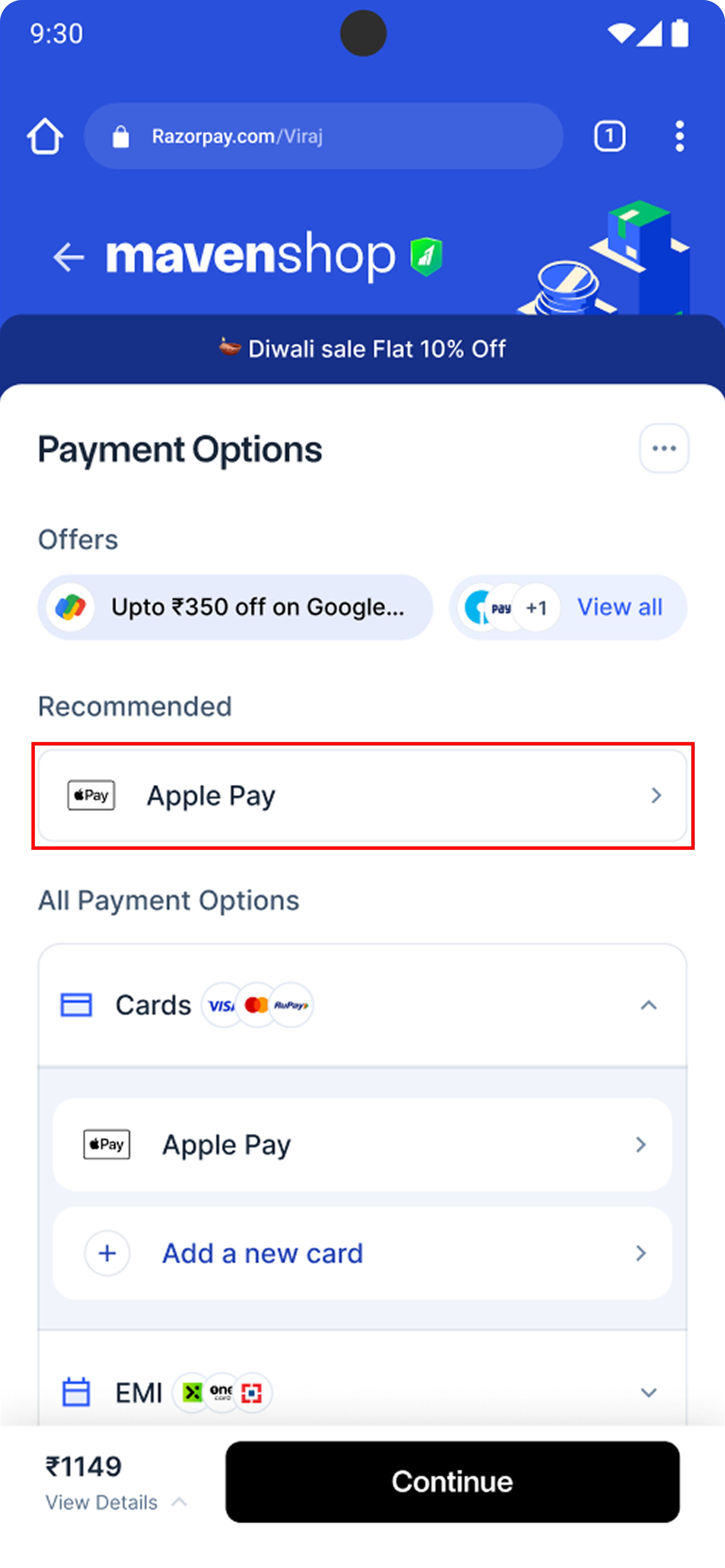 2. Apple Pay displays their default card, billing address and the payment amount.
3. They authenticate using Face ID, Touch ID or double-click the side button following the on-screen prompt **Double Click to Pay**.
2. Apple Pay displays their default card, billing address and the payment amount.
3. They authenticate using Face ID, Touch ID or double-click the side button following the on-screen prompt **Double Click to Pay**.
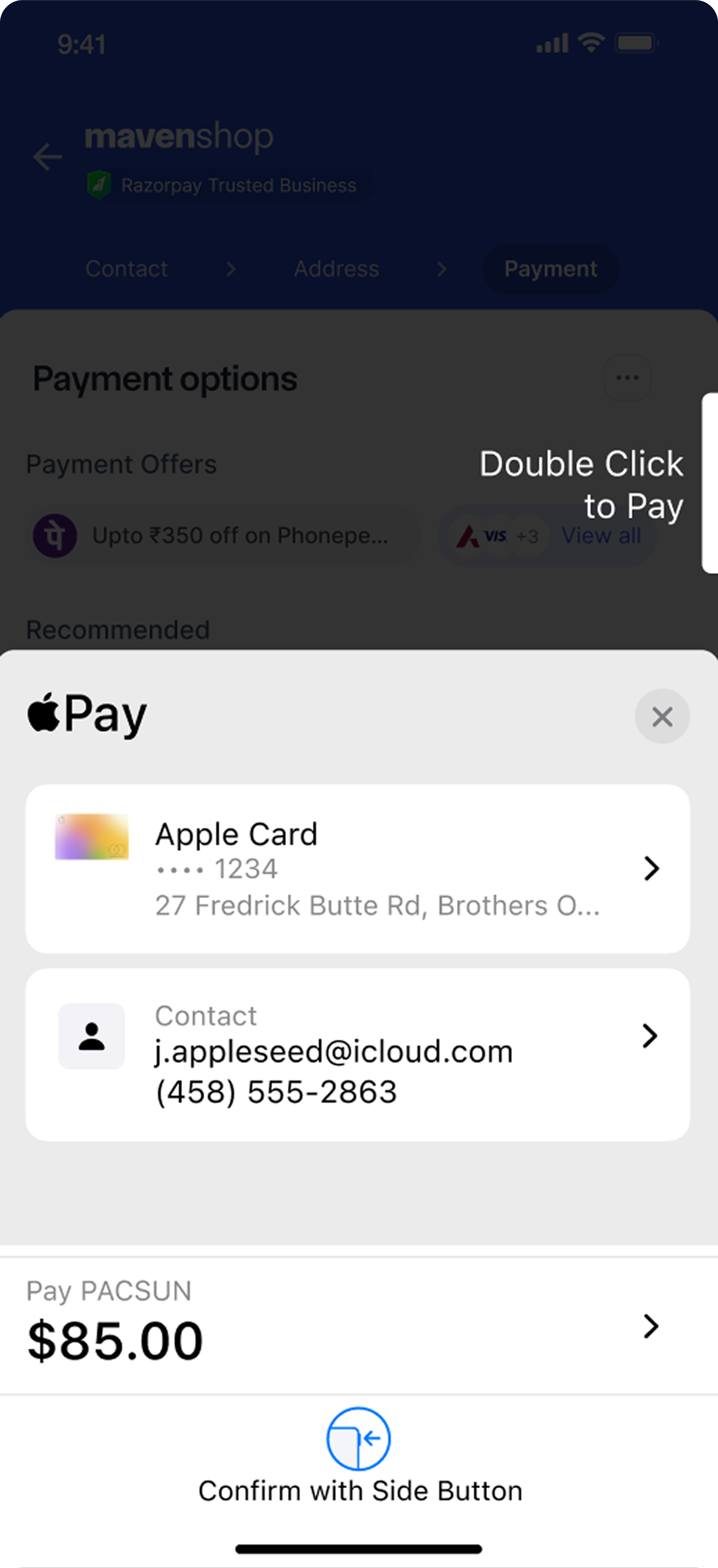 4. Upon successful authentication, the payment processes instantly and the customer is returned to your website or app with a confirmation.
**Best Practice: Apple Pay with iFrames**
As a best practice, if you want to show Apple Pay in an iframe element when the shopper is using Safari as their browser:
* For shoppers on Safari 17 or later: add the `allow` attribute to the iframe to let the iframe communicate correctly with Apple Pay APIs — ``. Safari 17 is available on iOS 17 and later, and macOS 12 and later.
* For shoppers on Safari 16 or earlier: match the iframe origin and your top-level origin. The protocols, hosts (full domain name) and ports, when specified, must be the same for both pages.
## Frequently Asked Questions
Yes, if you are a Malaysian business collecting payments in MYR and accepting card payments with Razorpay Curlec. Apple Pay is not enabled automatically. Contact our [Support team](https://curlec.com/support/) to enable it.
If the Apple Pay button is not appearing, check for these common issues:
* The domain your customer sees at checkout has not been added for Apple Pay. Send the exact domain to our [Support team](https://curlec.com/support/).
* Your website is not served over HTTPS with TLS 1.2 or higher.
* The customer's device or browser does not support Apple Pay. Apple Pay needs Safari on an Apple device, or Safari or Chrome on a Mac.
Apple Pay needs an Apple device in Safari, or Safari or Chrome on a Mac. On any other device or browser, your customer sees your other payment options.
No code changes are required on Standard Checkout, Payment Links, Payment Pages or Invoices. On Custom Checkout, add the Apple Pay button using the [Apple Pay Web SDK](/docs/payments/payment-methods/apple-pay/custom-integration/web-sdk). If you call our payment APIs directly ([S2S integration](/docs/payments/payment-methods/apple-pay/s2s-integration)), your integration changes, and we will tell you before you deploy.
There is no additional charge for Apple Pay. You pay your normal card rate.
No, not for the Apple Pay we enable. We handle the Apple side.
No. If your checkout has its own Apple Pay integration, it runs independently of Razorpay Curlec, and you need to remove it from your checkout.
No. Apple Pay does not support recurring payments.
No. There is no Test Mode for Apple Pay, so the first Apple Pay payment is a live one.
Apple Pay uses device-specific tokens that are automatically available for repeat purchases. Customers do not need to manually save payment details as their Apple Wallet handles this seamlessly.
An Apple Pay payment is a card payment (`method` is `card`). Identify it by the payment `notes` field in the API response or webhook payload:
```json theme={null}
"notes": {
"provider": "apple_pay"
}
```
This `provider` field always contains `apple_pay` for Apple Pay transactions, making it easy to distinguish them from regular card payments.
There are structural differences between Apple Pay and standard card payment webhook events.
Apple Pay payment:
```json theme={null}
"notes": {
"provider": "apple_pay"
}
```
Card payment:
```json theme={null}
"notes": [],
"token_id": "token_RIa2YPNM92wfzv"
```
Key differences:
* Apple Pay includes `provider: "apple_pay"` in the `notes` field.
* Card payments may include a `token_id` for saved cards.
**On mobile:**
* Open Safari in incognito mode on an iPhone with Apple Pay configured.
* Visit your checkout page.
* Apple Pay should appear at the top of the payment options and under the cards menu.
**On desktop:**
* Use Safari on macOS with Apple Pay configured.
* Ensure you are signed in to your Apple account.
* Apple Pay will be visible if you have cards linked to your Apple account.
Apple Pay will be visible on desktop under the following conditions:
* The customer must have Apple Pay cards linked to their Apple account.
* The user must be signed in to their Apple account on their macOS device.
### Related Information
* [Apple Pay Custom Checkout Integration](/docs/payments/payment-methods/apple-pay/custom-integration)
* [Apple Pay S2S Integration](/docs/payments/payment-methods/apple-pay/s2s-integration)
* [About Card Payments](/docs/payments/payment-methods/cards)
* [About Payment Methods](/docs/payments/payment-methods)
4. Upon successful authentication, the payment processes instantly and the customer is returned to your website or app with a confirmation.
**Best Practice: Apple Pay with iFrames**
As a best practice, if you want to show Apple Pay in an iframe element when the shopper is using Safari as their browser:
* For shoppers on Safari 17 or later: add the `allow` attribute to the iframe to let the iframe communicate correctly with Apple Pay APIs — ``. Safari 17 is available on iOS 17 and later, and macOS 12 and later.
* For shoppers on Safari 16 or earlier: match the iframe origin and your top-level origin. The protocols, hosts (full domain name) and ports, when specified, must be the same for both pages.
## Frequently Asked Questions
Yes, if you are a Malaysian business collecting payments in MYR and accepting card payments with Razorpay Curlec. Apple Pay is not enabled automatically. Contact our [Support team](https://curlec.com/support/) to enable it.
If the Apple Pay button is not appearing, check for these common issues:
* The domain your customer sees at checkout has not been added for Apple Pay. Send the exact domain to our [Support team](https://curlec.com/support/).
* Your website is not served over HTTPS with TLS 1.2 or higher.
* The customer's device or browser does not support Apple Pay. Apple Pay needs Safari on an Apple device, or Safari or Chrome on a Mac.
Apple Pay needs an Apple device in Safari, or Safari or Chrome on a Mac. On any other device or browser, your customer sees your other payment options.
No code changes are required on Standard Checkout, Payment Links, Payment Pages or Invoices. On Custom Checkout, add the Apple Pay button using the [Apple Pay Web SDK](/docs/payments/payment-methods/apple-pay/custom-integration/web-sdk). If you call our payment APIs directly ([S2S integration](/docs/payments/payment-methods/apple-pay/s2s-integration)), your integration changes, and we will tell you before you deploy.
There is no additional charge for Apple Pay. You pay your normal card rate.
No, not for the Apple Pay we enable. We handle the Apple side.
No. If your checkout has its own Apple Pay integration, it runs independently of Razorpay Curlec, and you need to remove it from your checkout.
No. Apple Pay does not support recurring payments.
No. There is no Test Mode for Apple Pay, so the first Apple Pay payment is a live one.
Apple Pay uses device-specific tokens that are automatically available for repeat purchases. Customers do not need to manually save payment details as their Apple Wallet handles this seamlessly.
An Apple Pay payment is a card payment (`method` is `card`). Identify it by the payment `notes` field in the API response or webhook payload:
```json theme={null}
"notes": {
"provider": "apple_pay"
}
```
This `provider` field always contains `apple_pay` for Apple Pay transactions, making it easy to distinguish them from regular card payments.
There are structural differences between Apple Pay and standard card payment webhook events.
Apple Pay payment:
```json theme={null}
"notes": {
"provider": "apple_pay"
}
```
Card payment:
```json theme={null}
"notes": [],
"token_id": "token_RIa2YPNM92wfzv"
```
Key differences:
* Apple Pay includes `provider: "apple_pay"` in the `notes` field.
* Card payments may include a `token_id` for saved cards.
**On mobile:**
* Open Safari in incognito mode on an iPhone with Apple Pay configured.
* Visit your checkout page.
* Apple Pay should appear at the top of the payment options and under the cards menu.
**On desktop:**
* Use Safari on macOS with Apple Pay configured.
* Ensure you are signed in to your Apple account.
* Apple Pay will be visible if you have cards linked to your Apple account.
Apple Pay will be visible on desktop under the following conditions:
* The customer must have Apple Pay cards linked to their Apple account.
* The user must be signed in to their Apple account on their macOS device.
### Related Information
* [Apple Pay Custom Checkout Integration](/docs/payments/payment-methods/apple-pay/custom-integration)
* [Apple Pay S2S Integration](/docs/payments/payment-methods/apple-pay/s2s-integration)
* [About Card Payments](/docs/payments/payment-methods/cards)
* [About Payment Methods](/docs/payments/payment-methods)