> ## Documentation Index
> Fetch the complete documentation index at: https://doc-test-my.mintlify.site/llms.txt
> Use this file to discover all available pages before exploring further.
# Add Images, Videos and More
> Add images, videos, hyperlinks, create lists and change font style and colour for your Razorpay Payment Pages.
**Handy Tips**
If you are using a template, the sample description only contains heading levels and content.
You can add the following to your Payment Pages:
You can define up to 2 heading levels. Select **Heading** for your major level 1 headings and **Subheading** for level 2 heading and **Normal Text** for content.
**Handy Tips**
Defining heading levels in your description makes the information look more structured and neat.
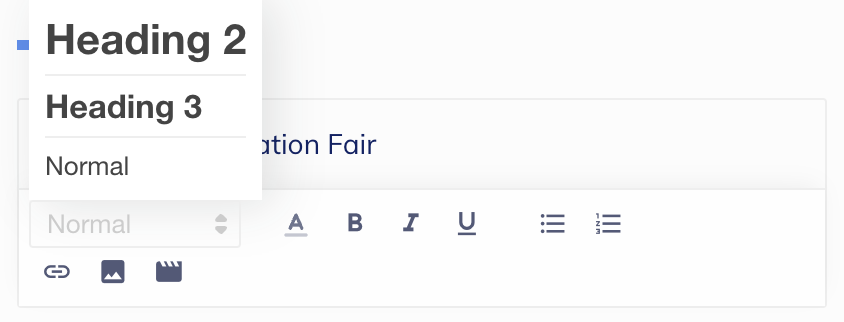 Choose a font color from 10 available colors. There are three font styles that you can apply to the text: boldface, italics and underline
You can create lists to display the information in a sequence. You can create bulleted lists and numbered lists.
Click the image icon to upload an image from your local system. We support images with dimensions 40x40. Formats supported are JPG, JPEG, PNG and GIF.
Click the video icon and **Enter Video URL**. This will embed the hosted video into your page.
Choose a font color from 10 available colors. There are three font styles that you can apply to the text: boldface, italics and underline
You can create lists to display the information in a sequence. You can create bulleted lists and numbered lists.
Click the image icon to upload an image from your local system. We support images with dimensions 40x40. Formats supported are JPG, JPEG, PNG and GIF.
Click the video icon and **Enter Video URL**. This will embed the hosted video into your page.
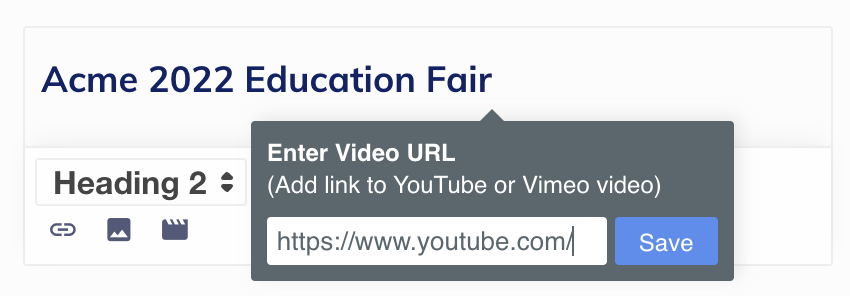 URLs entered as plain-text in the Description field are automatically converted to hyperlinks. You can use the **Link** icon to add YouTube or Vimeo video links to text. You cannot add links to images.
The **+Add social media share icons** option adds CTA (call-to-action) buttons for Facebook, X and WhatsApp.
Click **Add your contact information** to add contact details. You can add phone number and email address.
Click **Add Terms & Conditions** to add the terms and conditions for a transaction.
### Related Information
* [Create a Payment Page](/docs/payments/payment-pages/create)
* [Customise Payment Pages](/docs/payments/payment-pages/customise)
URLs entered as plain-text in the Description field are automatically converted to hyperlinks. You can use the **Link** icon to add YouTube or Vimeo video links to text. You cannot add links to images.
The **+Add social media share icons** option adds CTA (call-to-action) buttons for Facebook, X and WhatsApp.
Click **Add your contact information** to add contact details. You can add phone number and email address.
Click **Add Terms & Conditions** to add the terms and conditions for a transaction.
### Related Information
* [Create a Payment Page](/docs/payments/payment-pages/create)
* [Customise Payment Pages](/docs/payments/payment-pages/customise)