> ## Documentation Index
> Fetch the complete documentation index at: https://doc-test-my.mintlify.site/llms.txt
> Use this file to discover all available pages before exploring further.
# Add Google Analytics Tracking ID
> Add your Google Tracking ID to your Payment Pages to track payments and conversions from your Google advertisements.
You can add your Google Tracking ID to your Payment Pages to track payments and conversions from your Google advertisements. Know more about [Tracking ID](https://support.google.com/analytics/answer/1008080?hl=en) and how to create one using Google Analytics account.
**Available Tracking Metrics**
| Metric | Description |
| --------- | -------------------------------------------------------------------------------------------- |
| Page View | When a customer lands on your Payment Page. This is the default metric to track page visits. |
## Prerequisites
[Create a Google Tracking ID](https://support.google.com/analytics/answer/1008080?hl=en).
## Add Google Tracking ID to Your Payment Page
To add Google Tracking ID to your Payment Pages:
1. Navigate to your Payment Page/Webstore in the edit mode.
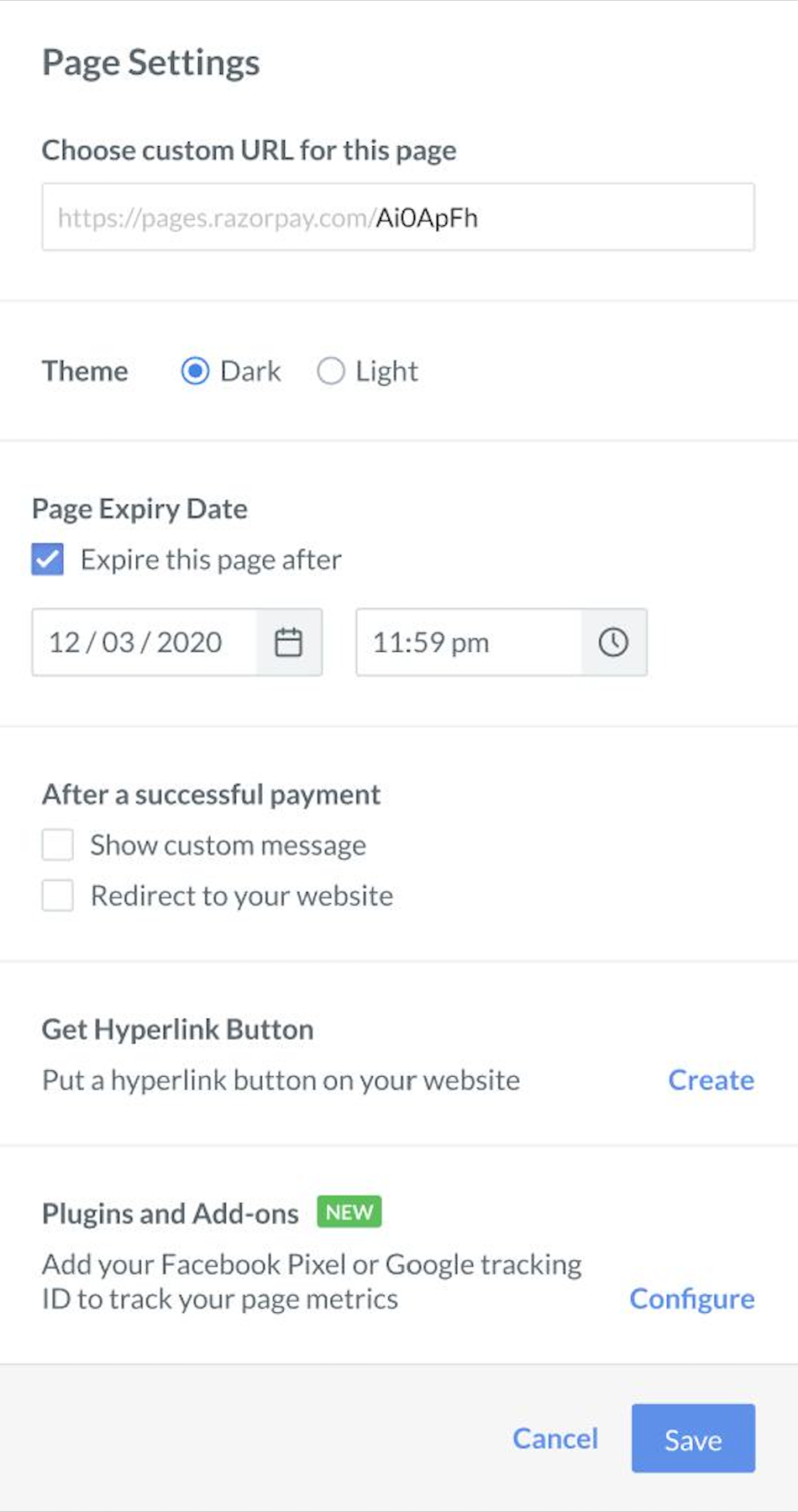
2. Click **Page Settings**.
3. Go to **Plugins and Add-ons** and click **Configure**.
 4. Add the **Tracking ID** to track the page views.
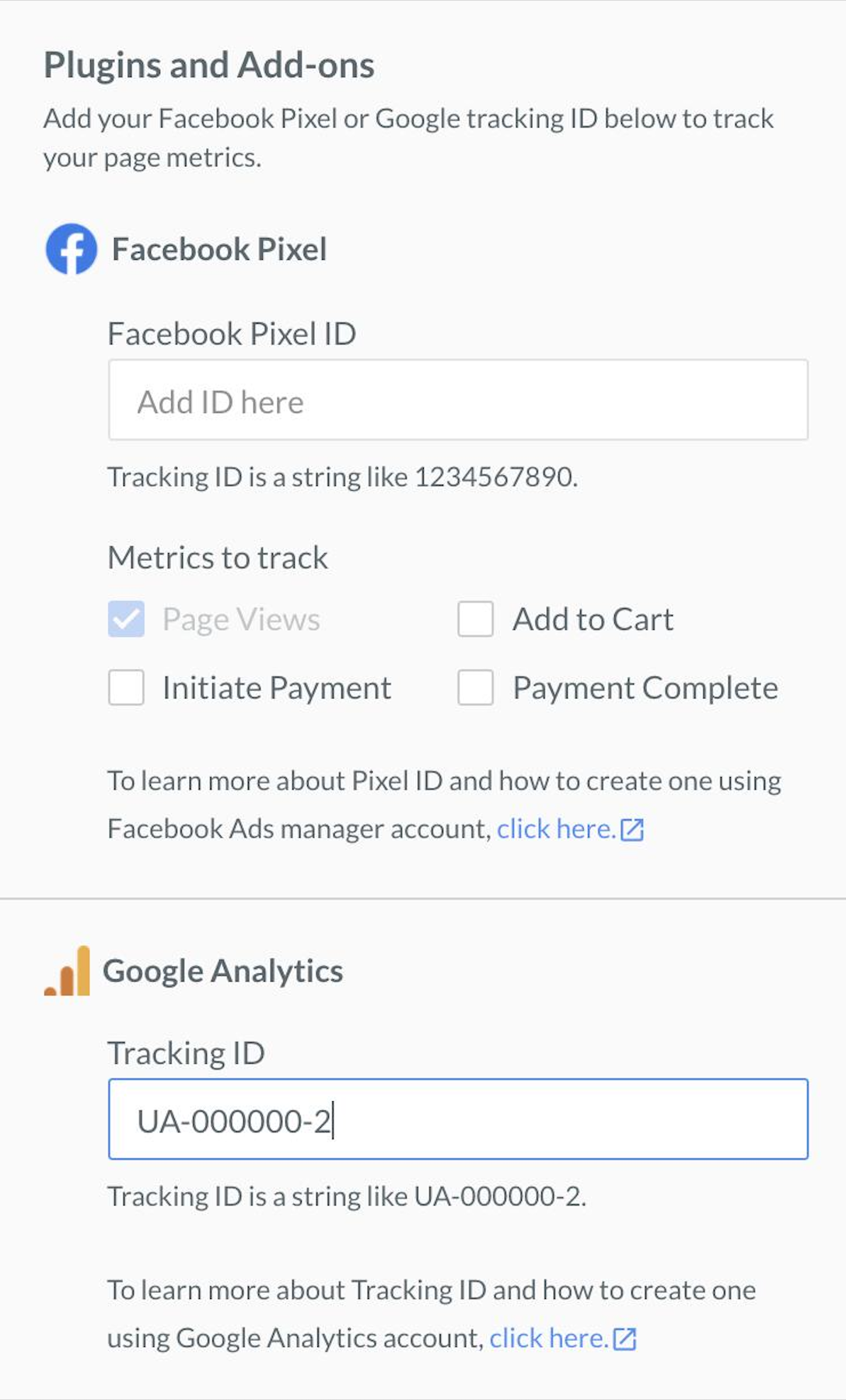 5. Click **Save**.
### Related Information
* [Add Facebook Pixel to Payment Page](/docs/payments/payment-pages/plugins-add-ons/fb-pixel)
* [Add Facebook Pixel to your payment success page](/docs/payments/payment-pages/plugins-add-ons/fb-payment-success)
5. Click **Save**.
### Related Information
* [Add Facebook Pixel to Payment Page](/docs/payments/payment-pages/plugins-add-ons/fb-pixel)
* [Add Facebook Pixel to your payment success page](/docs/payments/payment-pages/plugins-add-ons/fb-payment-success)