> ## Documentation Index
> Fetch the complete documentation index at: https://doc-test-my.mintlify.site/llms.txt
> Use this file to discover all available pages before exploring further.
# About Route
Razorpay Route simplifies complex payment flows by enabling you to easily split incoming funds among multiple third-parties, sellers or bank accounts. This solution is ideally suited for businesses, such as marketplaces or platforms, that operate on a `one-to-many` disbursement model.
* Add and manage Linked Accounts.
* Split payments and transfer funds to multiple Linked Accounts.
* Reverse transferred funds and manage customer refunds with automated reversals.
* Manage Linked Account settlements.
* Move from manual and file-based reconciliation to an entirely API-driven process.
* **Instant Transfers**: Instant transfers, ensuring recipients receive payments promptly. Beneficial for businesses and individuals who rely on timely disbursements.
* **Multiple Payment Transfers**: Splits payments into various portions for seamless transfer to multiple parties, ideal for marketplaces where sellers, service providers and platform owners receive their respective shares.
* **Easy Integration**: Seamlessly integrates into existing payment systems via APIs, enhancing payment capabilities without major system changes.
* **Transparent Reporting and Settlements**: Comprehensive reporting and analytics for tracking transactions, transfers and settlements.
## Prerequisites
You should add Linked Accounts using the [Dashboard](/docs/payments/route/linked-account#add-and-manage-linked-accounts) or [APIs](/docs/api/payments/route/create-linked-account) before using Route.
## How Route Works
Given below is the funds flow in Route:
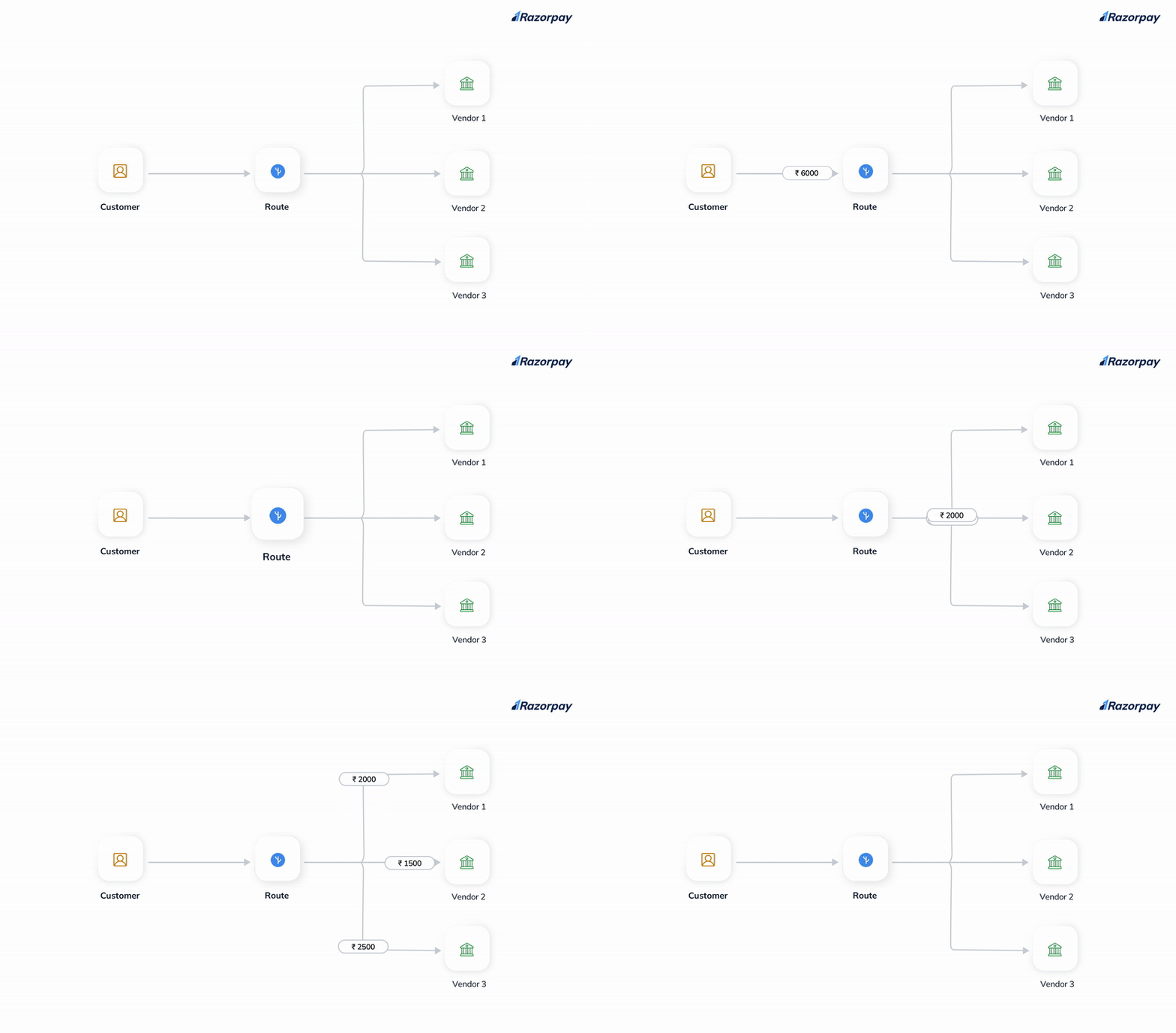 1. A customer makes a purchase on your site.
2. You can choose to:
* Initiate transfer of funds to Linked Accounts.
* Defer the transfer settlement.
* Define a custom delay period for settlement.
3. Razorpay settles funds to the Linked Account and sends a webhook notification to you.
## Get Started
To get started with Route:
1. Log in to the Dashboard and click **Route** under **PAYMENT PRODUCTS**.
2. After log in, you should add linked accounts to start using Route. Refer to the [Linked Accounts](/docs/payments/route/linked-account) page for more information.
3. Once Linked Accounts are added, you can then start creating transfers to those accounts. Refer to the [Transfer Funds to Linked Accounts](/docs/payments/route/transfer-funds-to-linked-accounts) page for more information.
Explore the [Route Use Cases](/docs/payments/route/use-cases) to gain insights into the practical applications of Route.
### Supported Platforms
Route is supported on the following platforms:
| Web | Android | iOS | Webview |
| --- | ------- | --- | ------- |
| ✓ | ✓ | ✓ | ✓ |
| Web | Android | iOS | Webview |
| --- | ------- | --- | ------- |
| ✓ | ✓ | ✓ | ✓ |
### Related Information
* [Linked Accounts](/docs/payments/route/linked-account)
* [Transfer Funds to Linked Accounts](/docs/payments/route/transfer-funds-to-linked-accounts)
* [Initiate Refund](/docs/payments/route/linked-account/initiate-refund)
* [Reports](/docs/payments/route/view-reports)
* [RBI Compliance FAQs](/docs/payments/route/faqs#rbi-compliance-requirements-for-route)
1. A customer makes a purchase on your site.
2. You can choose to:
* Initiate transfer of funds to Linked Accounts.
* Defer the transfer settlement.
* Define a custom delay period for settlement.
3. Razorpay settles funds to the Linked Account and sends a webhook notification to you.
## Get Started
To get started with Route:
1. Log in to the Dashboard and click **Route** under **PAYMENT PRODUCTS**.
2. After log in, you should add linked accounts to start using Route. Refer to the [Linked Accounts](/docs/payments/route/linked-account) page for more information.
3. Once Linked Accounts are added, you can then start creating transfers to those accounts. Refer to the [Transfer Funds to Linked Accounts](/docs/payments/route/transfer-funds-to-linked-accounts) page for more information.
Explore the [Route Use Cases](/docs/payments/route/use-cases) to gain insights into the practical applications of Route.
### Supported Platforms
Route is supported on the following platforms:
| Web | Android | iOS | Webview |
| --- | ------- | --- | ------- |
| ✓ | ✓ | ✓ | ✓ |
| Web | Android | iOS | Webview |
| --- | ------- | --- | ------- |
| ✓ | ✓ | ✓ | ✓ |
### Related Information
* [Linked Accounts](/docs/payments/route/linked-account)
* [Transfer Funds to Linked Accounts](/docs/payments/route/transfer-funds-to-linked-accounts)
* [Initiate Refund](/docs/payments/route/linked-account/initiate-refund)
* [Reports](/docs/payments/route/view-reports)
* [RBI Compliance FAQs](/docs/payments/route/faqs#rbi-compliance-requirements-for-route)