> ## Documentation Index
> Fetch the complete documentation index at: https://doc-test-my.mintlify.site/llms.txt
> Use this file to discover all available pages before exploring further.
# Initiate Refund - Linked Account Dashboard
> Initiate a refund from the Linked Account Dashboard.
The Linked Account users can initiate a refund for individual transaction levels or in batches from the Linked Account Dashboard. They can also make full and partial refunds to the customers.
You can initiate the following types of refunds from the Linked Account: [Individual Refund](/docs/payments/route/linked-account/initiate-refund#individual-refunds), [Full Refund](/docs/payments/route/linked-account/initiate-refund#full-refund), [Partial Refund](/docs/payments/route/linked-account/initiate-refund#partial-refund) and [Batch Refund](/docs/payments/route/linked-account/initiate-refund#batch-refunds).
## Refund Checklist
* Ensure you have sufficient nodal balance to create a refund.
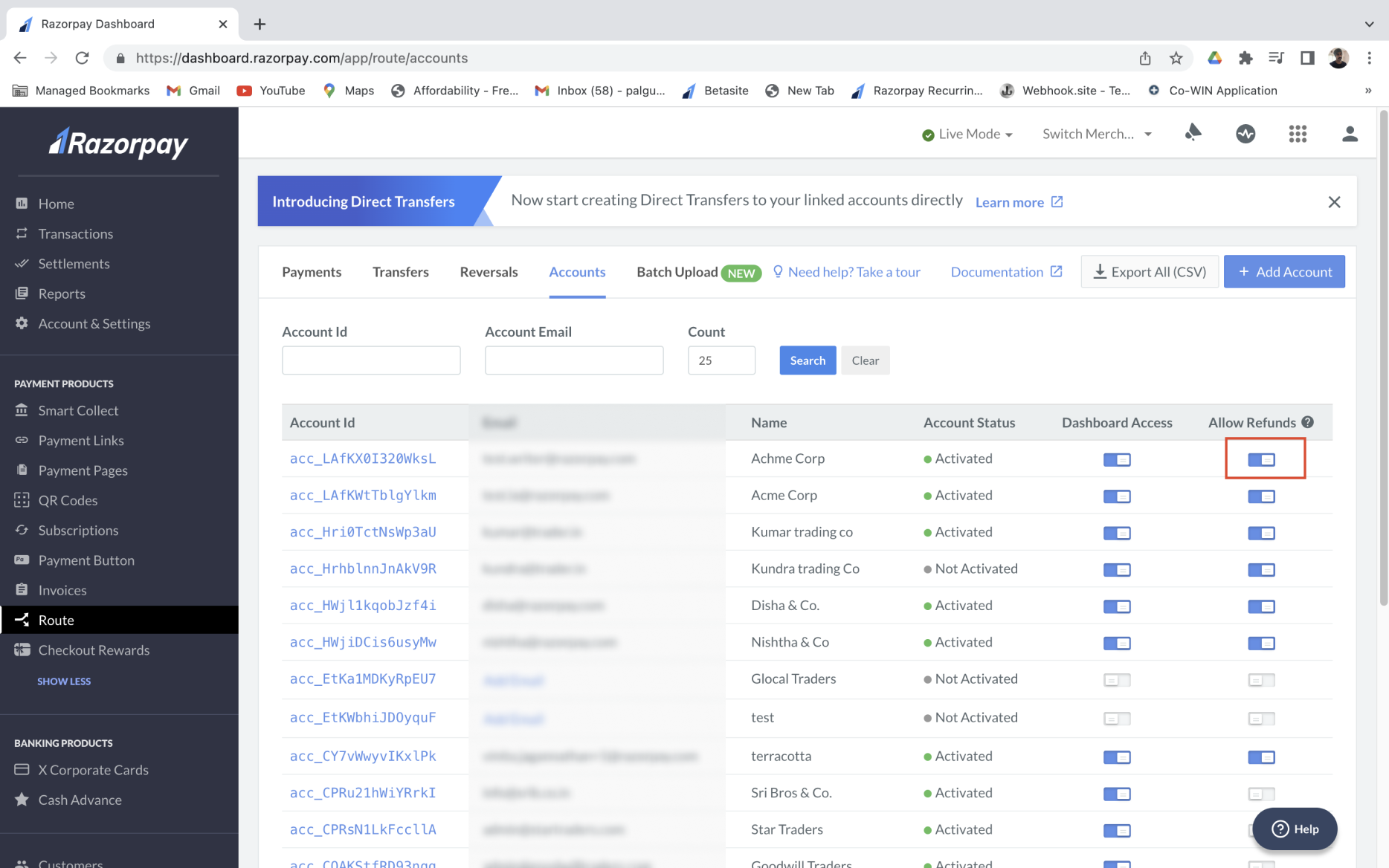
* To allow refund capability for an existing account, go to the **Accounts** tab and enable the **Allow Refunds** option against the relevant account.
 ## Initiate Refund
See how you can initiate the following types of refunds from your Dashboard.
To issue an individual refund:
1. Log in to the Dashboard and click **Route** under **PAYMENT PRODUCTS**.
2. Go to the **Transfers** tab.
3. Select the **Refund to Customer** option.
4. Enter the refund amount and add a description in the **Notes** field.
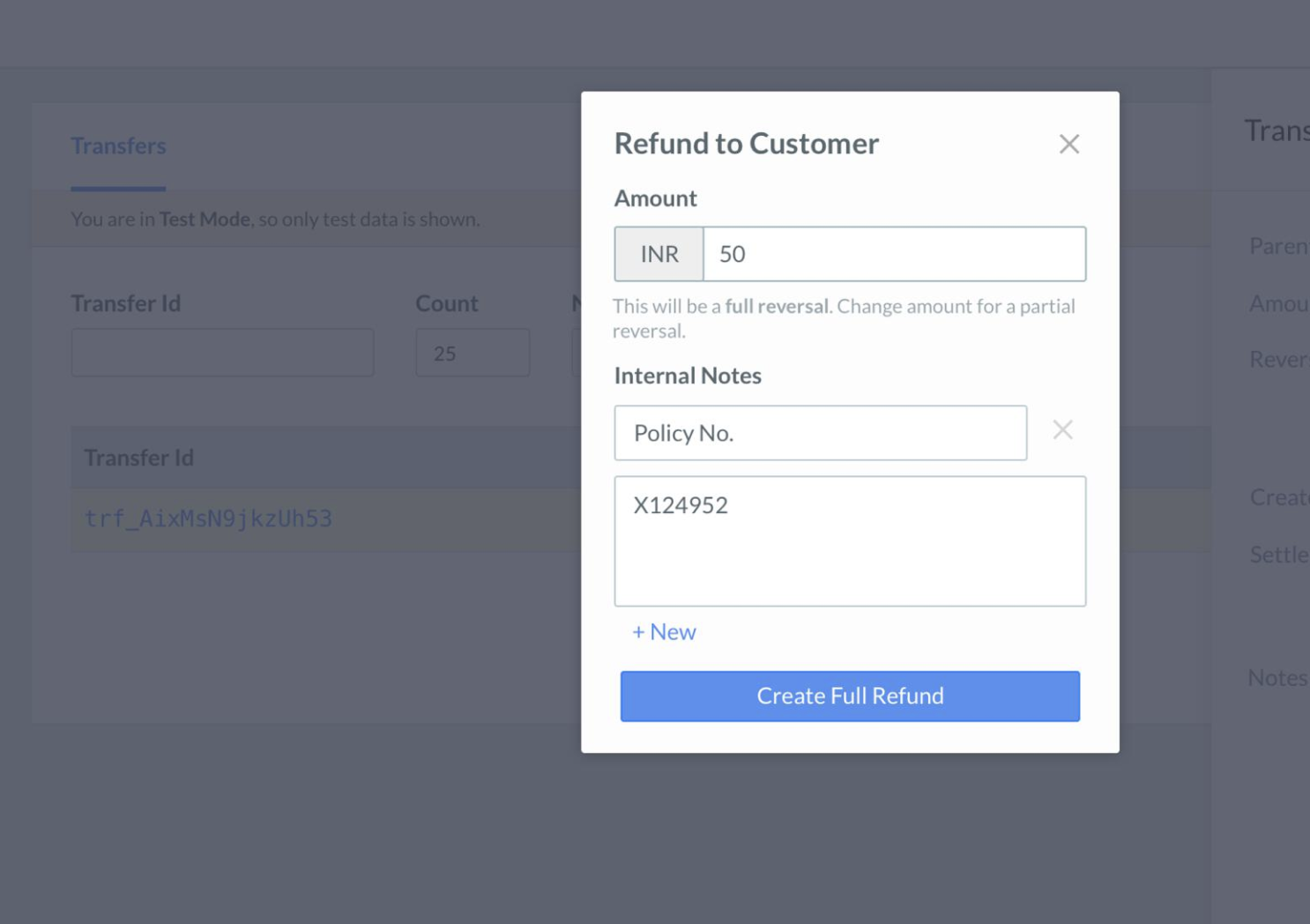
To initiate a full refund:
1. Enter the full transaction amount.
2. Click **Create Full Refund**.
The screen appears as shown below:
## Initiate Refund
See how you can initiate the following types of refunds from your Dashboard.
To issue an individual refund:
1. Log in to the Dashboard and click **Route** under **PAYMENT PRODUCTS**.
2. Go to the **Transfers** tab.
3. Select the **Refund to Customer** option.
4. Enter the refund amount and add a description in the **Notes** field.
To initiate a full refund:
1. Enter the full transaction amount.
2. Click **Create Full Refund**.
The screen appears as shown below:
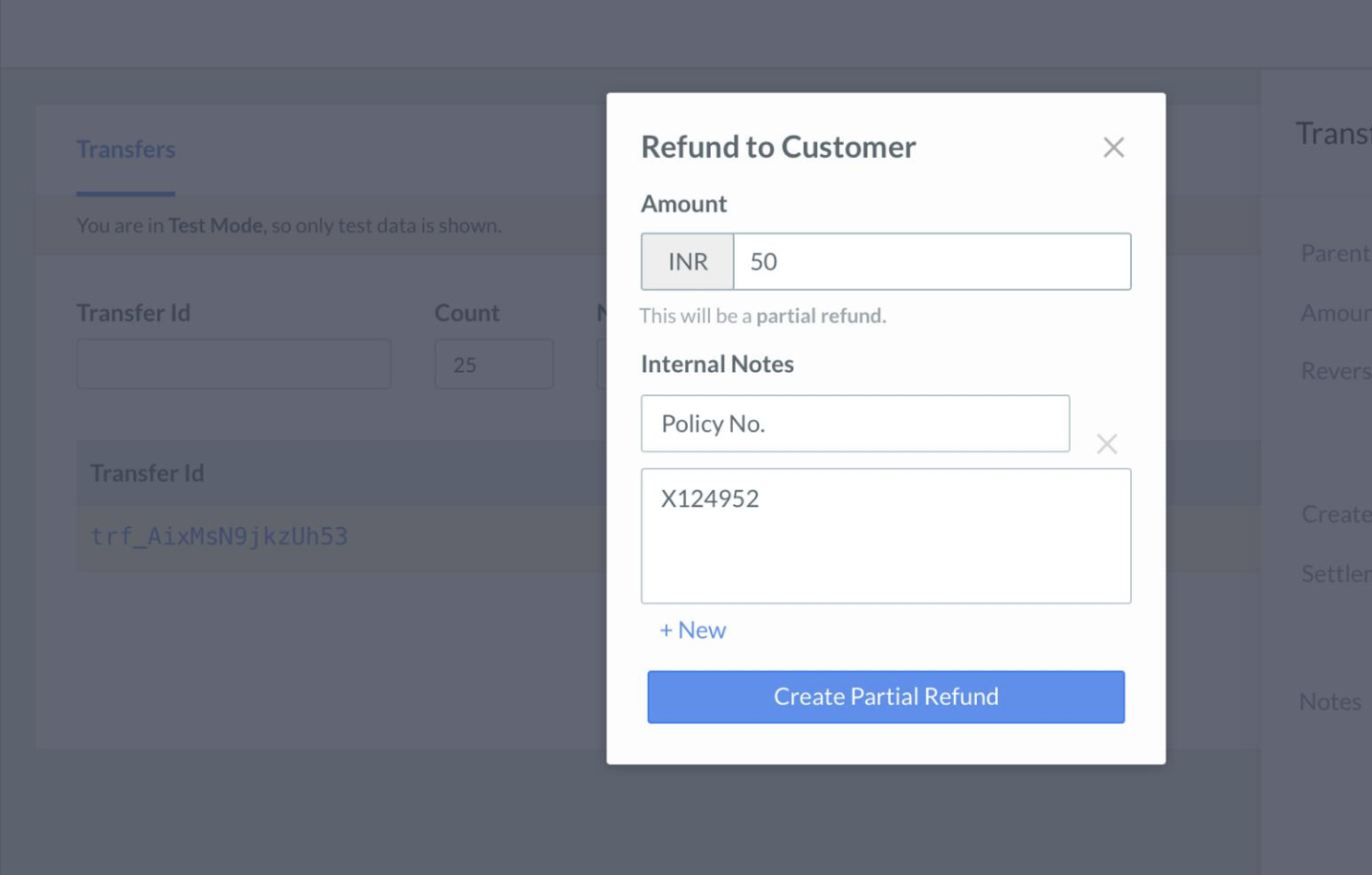
 To initiate a partial refund:
1. Enter an amount lower than the total transaction value.
2. Click **Create Partial Refund**.
The screen appears as shown below:
To initiate a partial refund:
1. Enter an amount lower than the total transaction value.
2. Click **Create Partial Refund**.
The screen appears as shown below:
 Using Batch refund, you can process a large volume of refund from the Linked Accounts Dashboard.
To initiate batch refund:
1. Download the Batch Refund Format - Click the download button to obtain the .csv format, wherein the transaction details can be entered.
2. Enter the necessary information in the file.
3. Upload the Batch Refund Format - After entering all the necessary details, upload the file.
Once uploaded, if the funds are sufficient, the batch file is processed.
#### Process Batch Refund
After the batch refund is processed, you can download the output file to view the reversals. In case some of the batch records were not processed, an error is displayed for such records. You may then attempt a repeat refund after handling the errors.
### Related Information
* [Route](/docs/payments/route)
* [Linked Accounts](/docs/payments/route/linked-account)
* [Reversals and Settlements](/docs/payments/route/linked-account/reversals-settlements)
* [Manage Profile and Team](/docs/payments/route/linked-account/manage-profile)
Using Batch refund, you can process a large volume of refund from the Linked Accounts Dashboard.
To initiate batch refund:
1. Download the Batch Refund Format - Click the download button to obtain the .csv format, wherein the transaction details can be entered.
2. Enter the necessary information in the file.
3. Upload the Batch Refund Format - After entering all the necessary details, upload the file.
Once uploaded, if the funds are sufficient, the batch file is processed.
#### Process Batch Refund
After the batch refund is processed, you can download the output file to view the reversals. In case some of the batch records were not processed, an error is displayed for such records. You may then attempt a repeat refund after handling the errors.
### Related Information
* [Route](/docs/payments/route)
* [Linked Accounts](/docs/payments/route/linked-account)
* [Reversals and Settlements](/docs/payments/route/linked-account/reversals-settlements)
* [Manage Profile and Team](/docs/payments/route/linked-account/manage-profile)