> ## Documentation Index
> Fetch the complete documentation index at: https://doc-test-my.mintlify.site/llms.txt
> Use this file to discover all available pages before exploring further.
# Payment Reversals
> Initiate a partial and full payment reversal to your business account.
Initiate a reversal operation of the funds transferred to your Linked Account using your Dashboard.
* You can initiate a full or partial reversal.
* You can initiate a reversal even if the funds are settled to a Linked Account, as long as there is a floating balance available.
* For all refund requests made by the end customer, the fund transfer happens from the primary account or Linked Account. Hence, you need to initiate a reversal of funds from your Linked Accounts and initiate the customer's refund. You can also use the automated method of reversing funds before a refund. Upon enabling the `Reverse All` option on a payment refund request, we will automatically reverse all transfers made on the payment before refunding the payment to the customer.
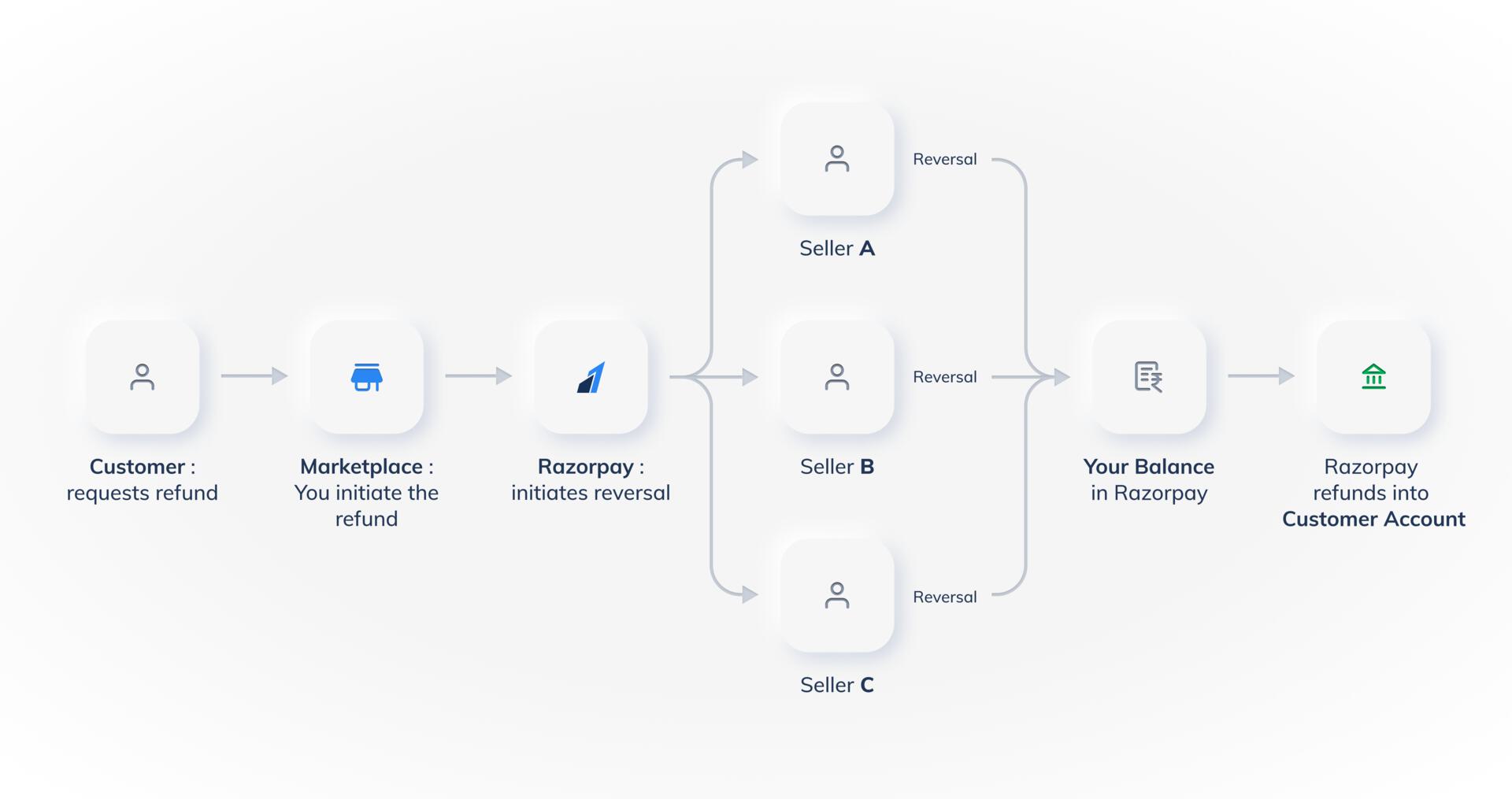 In certain cases, Linked Accounts must directly refund the amount to the customers. To handle this, you can [enable customer refunds](/docs/payments/route/dashboard#enable-refunds-capability) for linked accounts from your Dashboard. The Linked Account users can [issue refund to the customer](/docs/payments/route/linked-account/initiate-refund) from the Linked Account Dashboard.
## Reversal Checklist
* Ensure the Linked Account has sufficient nodal balance to create a reversal.
* Pass the `reverse_all` parameter for the reversal from all the linked accounts where the transfer has been made.
* The `reverse_all` parameter cannot be applied on partial refunds.
## Create a Reversal
To initiate a reversal:
1. Log in to the Dashboard and click **Route** under **PAYMENT PRODUCTS**.
2. Click the **Transfers** tab and then click the relevant **Transfer ID**.
3. In the **Transfers details** pane, click **Create reversal**.
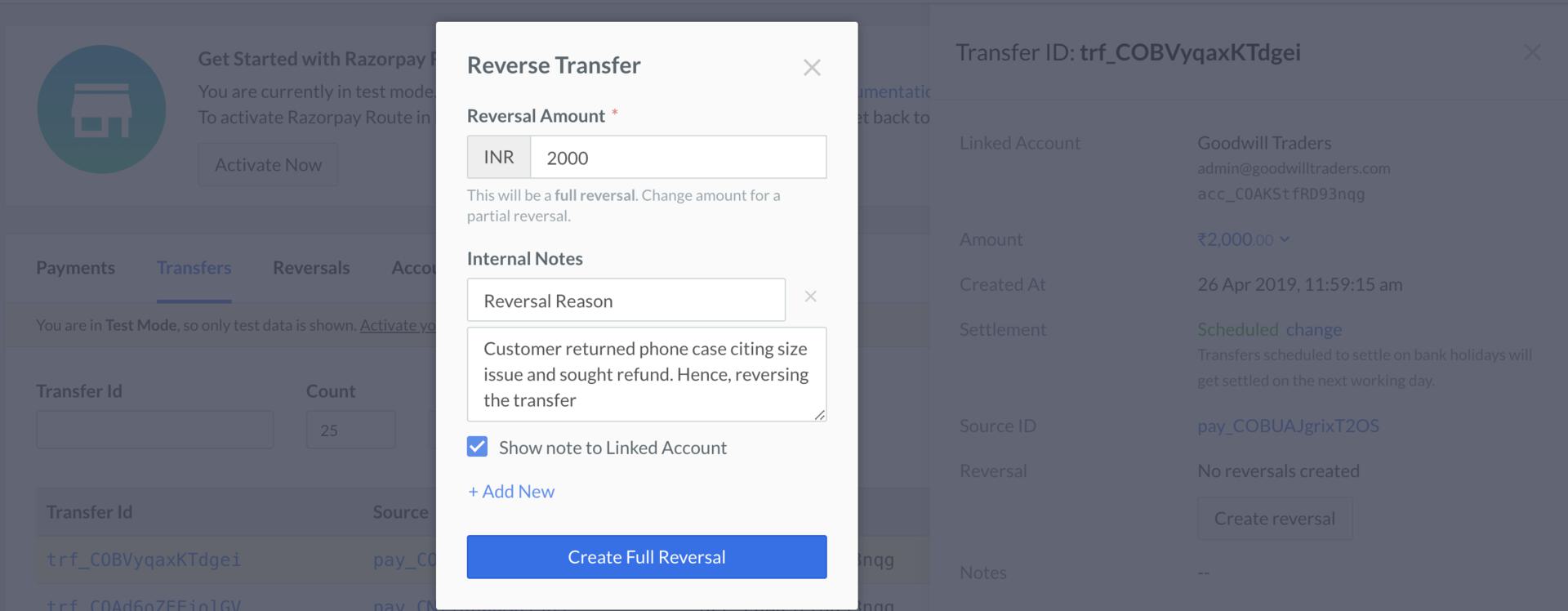
1. For a full reversal, enter the total transfer amount. Add internal notes and share it with Linked Account if required. Click **Create Full Reversal**.
2. You can also make a partial reversal. Enter the amount, add notes if required and click **Issue Partial Refund**.
4. A dialog box is displayed. Click **Yes, Reverse**.
You can view the reversal details under the **Reversals** tab.
In certain cases, Linked Accounts must directly refund the amount to the customers. To handle this, you can [enable customer refunds](/docs/payments/route/dashboard#enable-refunds-capability) for linked accounts from your Dashboard. The Linked Account users can [issue refund to the customer](/docs/payments/route/linked-account/initiate-refund) from the Linked Account Dashboard.
## Reversal Checklist
* Ensure the Linked Account has sufficient nodal balance to create a reversal.
* Pass the `reverse_all` parameter for the reversal from all the linked accounts where the transfer has been made.
* The `reverse_all` parameter cannot be applied on partial refunds.
## Create a Reversal
To initiate a reversal:
1. Log in to the Dashboard and click **Route** under **PAYMENT PRODUCTS**.
2. Click the **Transfers** tab and then click the relevant **Transfer ID**.
3. In the **Transfers details** pane, click **Create reversal**.
1. For a full reversal, enter the total transfer amount. Add internal notes and share it with Linked Account if required. Click **Create Full Reversal**.
2. You can also make a partial reversal. Enter the amount, add notes if required and click **Issue Partial Refund**.
4. A dialog box is displayed. Click **Yes, Reverse**.
You can view the reversal details under the **Reversals** tab.
 ### Related Information
* [Transfer Funds to Linked Accounts](/docs/payments/route/transfer-funds-to-linked-accounts)
* [Transfers and Related Fees](/docs/payments/route/transfer-fees-example)
* [Schedule Settlements](/docs/payments/route/schedule-settlement)
* [Refund to Customers](/docs/payments/route/refund)
### Related Information
* [Transfer Funds to Linked Accounts](/docs/payments/route/transfer-funds-to-linked-accounts)
* [Transfers and Related Fees](/docs/payments/route/transfer-fees-example)
* [Schedule Settlements](/docs/payments/route/schedule-settlement)
* [Refund to Customers](/docs/payments/route/refund)