

View Payment Details
To view the payments made on a particular Payment Button:- Log in to the Dashboard and navigate to Payment Button.
- Click the required payment button.
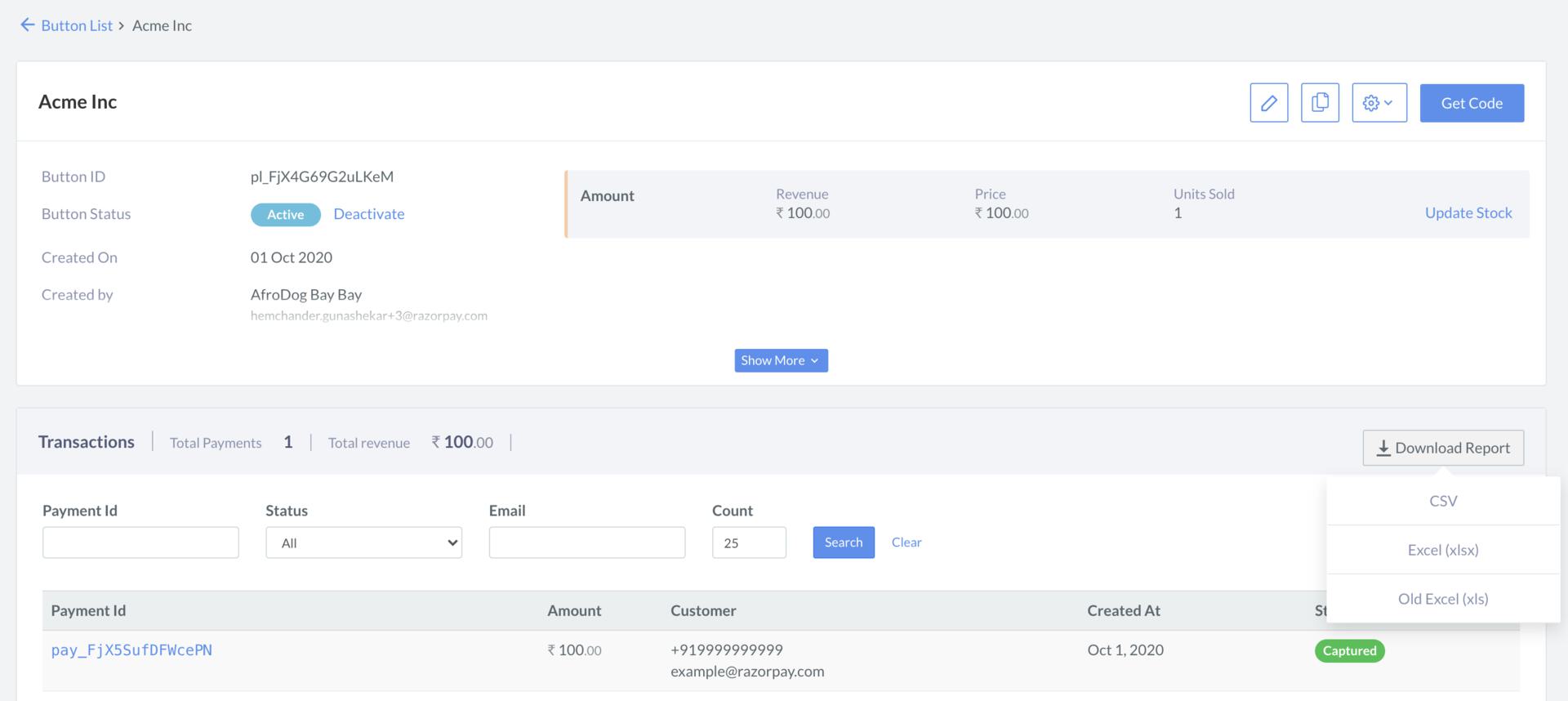
- Scroll down to the transaction details section. Here the list of all payments made using the button is displayed.
- Click a Payment Id to view details of the payment.
Download Report
You can download the report related to a Payment Button in the following formats:CSV (csv), Excel (xlsx) and Old Excel (xls). To download a report:- Navigate to Payment Button on the Dashboard.
- Click the required button. The button details view appears.
- Scroll down to the transaction details section. Here the list of all payments made using the button is displayed.
- Hover the mouse pointer on Download Report, and choose a format.
Report Details
Report Details
The downloaded report has the following columns:
- Payment Button ID
- Payment Button Title
- Payment Date
- Order ID
- Item Name
- Item Amount
- Item Quantity
- Item Payment Amount
- Total Payment Amount
- Currency
- Payment Status
- Input Fields, if any
- Phone