

How can I verify if webhooks are auto-configured?
How can I verify if webhooks are auto-configured?
To verify if webhooks are enabled:
- Log in to the Razorpay Dashboard and navigate to Account & Settings.
- In the Website and app settings section, click Webhooks.
- Select the relevant webhook URL.
-
On the right panel, check if the status for
payment.authorized,payment.failedandrefund.createdis enabled.
What is the difference between an Order Id and Order Number?
What is the difference between an Order Id and Order Number?
Order Id: When a customer clicks the pay button on your app, an Order is created and a corresponding “order_id” is generated in the response.
Order Number: It simply acts like a serial number. You can search a particular order with the help of the Order Number.
Order Number: It simply acts like a serial number. You can search a particular order with the help of the Order Number.
Handy TipsTo reconcile the payments, you can verify the Order Id from the Drupal Commerce Dashboard with Order Id mentioned on the Razorpay Dashboard. Navigate to Transactions → Orders or Payments on the Razorpay Dashboard to view the Order Id.
How can I uninstall the plugin?
How can I uninstall the plugin?
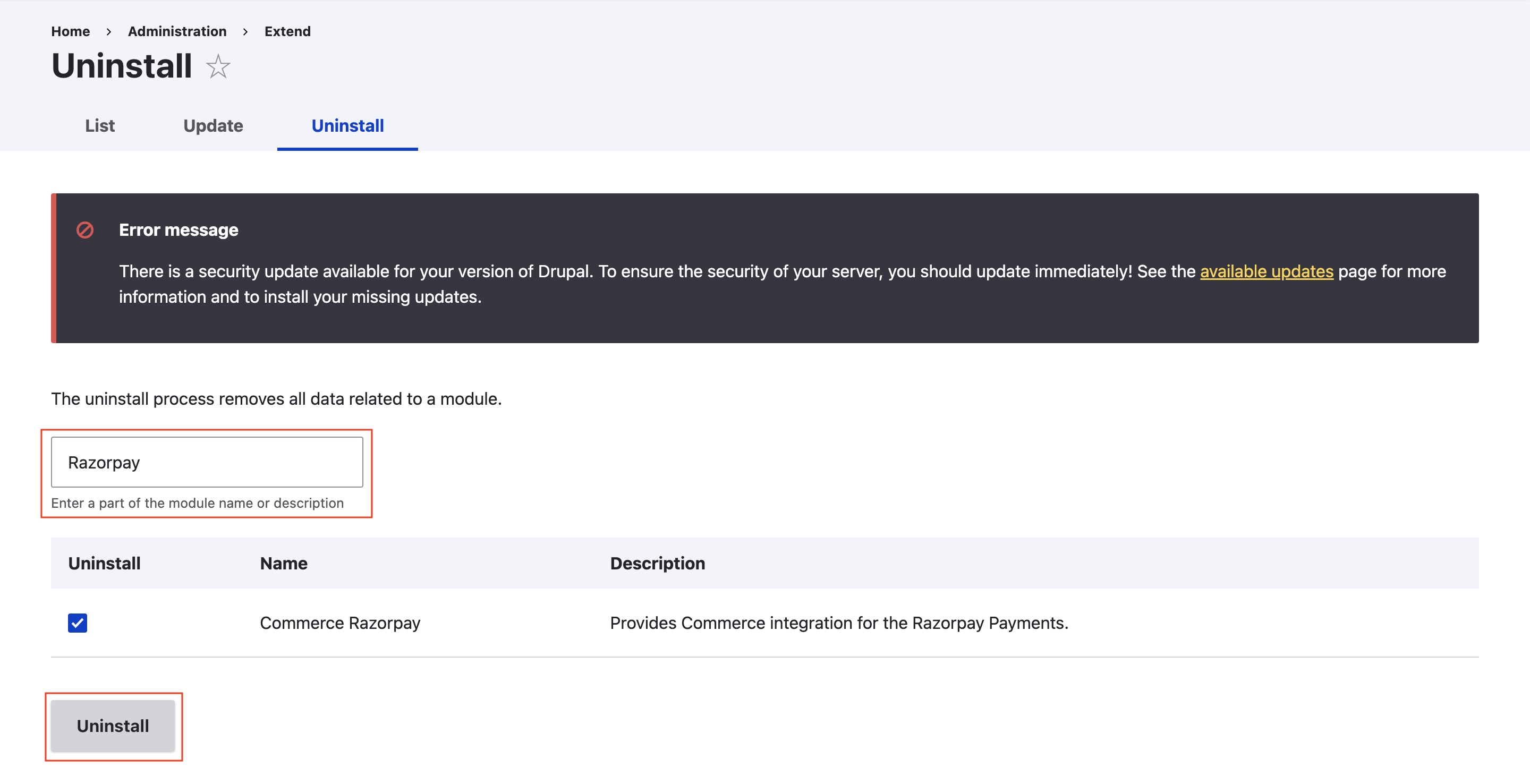
Follow the step given below to uninstall the plugin:
- Log in to your Drupal Commerce Dashboard.
- Navigate to Extend → Uninstall.
- Search for Razorpay in the Filter section.
- Select the check box and click Uninstall.
Does the Drupal Commerce plugin support 3 or 0 decimal unit currencies?
Does the Drupal Commerce plugin support 3 or 0 decimal unit currencies?
The Drupal Commerce plugin currently supports only currencies that use 2 decimal units. For example: USD, EUR, INR. It does not support currencies with 0 decimal (for example, JPY) or 3 decimal units (for example, BHD).