Sign Up
To set up a Razorpay Curlec account, go to the Razorpay Curlec website and click Sign Up. Follow these steps for a smooth sign up process:Basic Details
Basic Details
Provide the following details to get started:
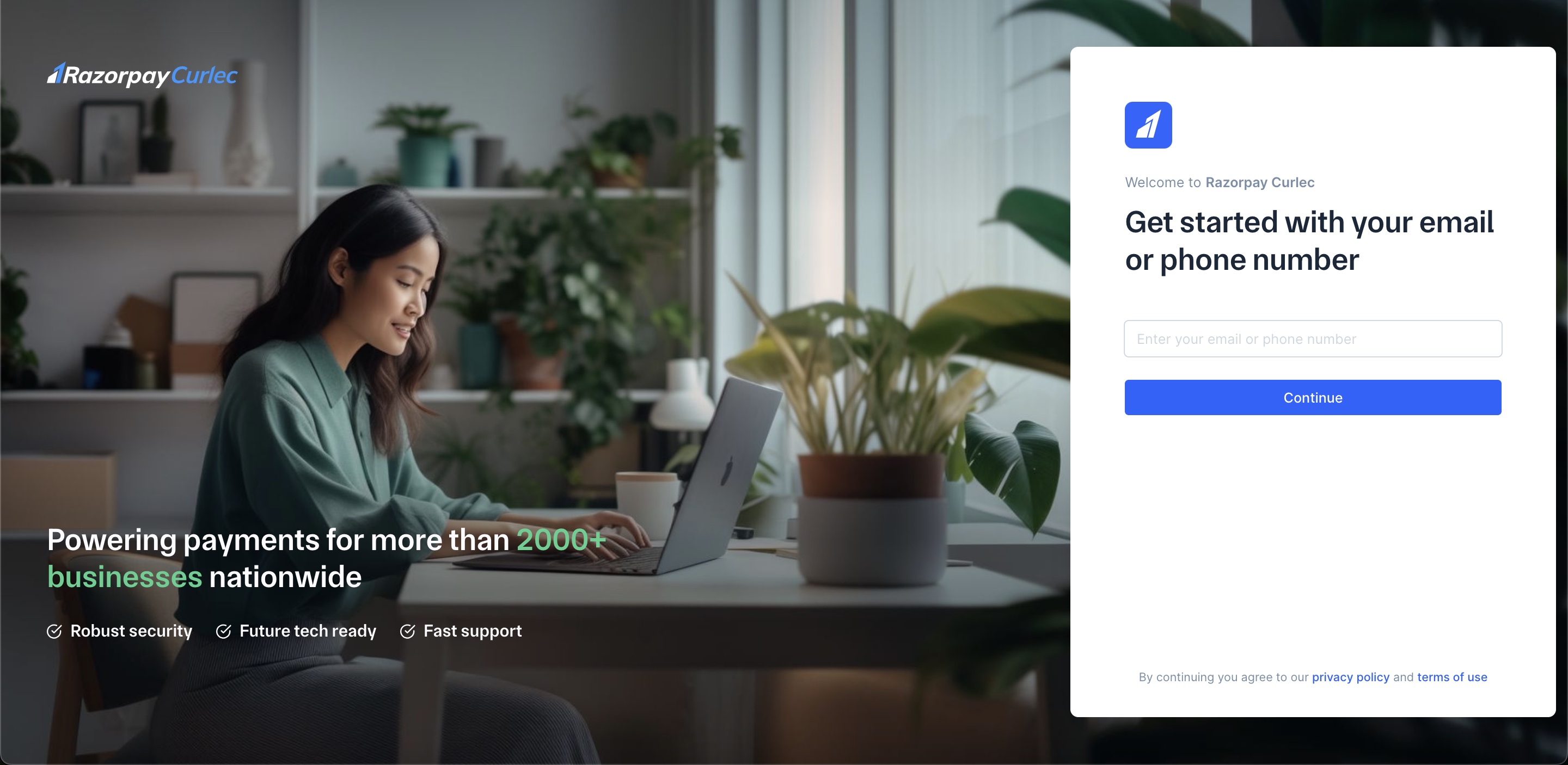
- Enter your phone number or email and click Continue.
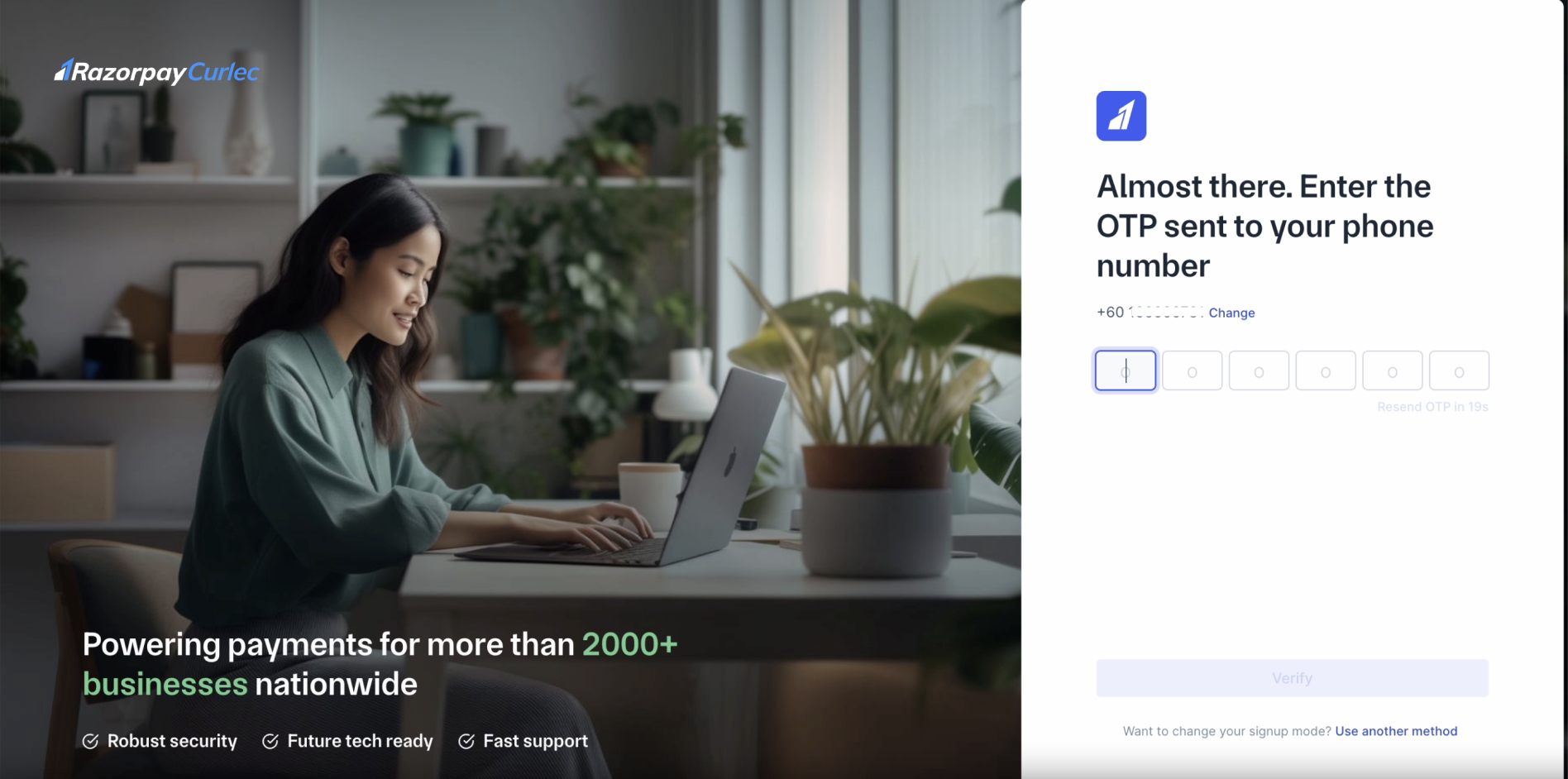
- Enter OTP and click Verify.
- Enter your Name and click Next.
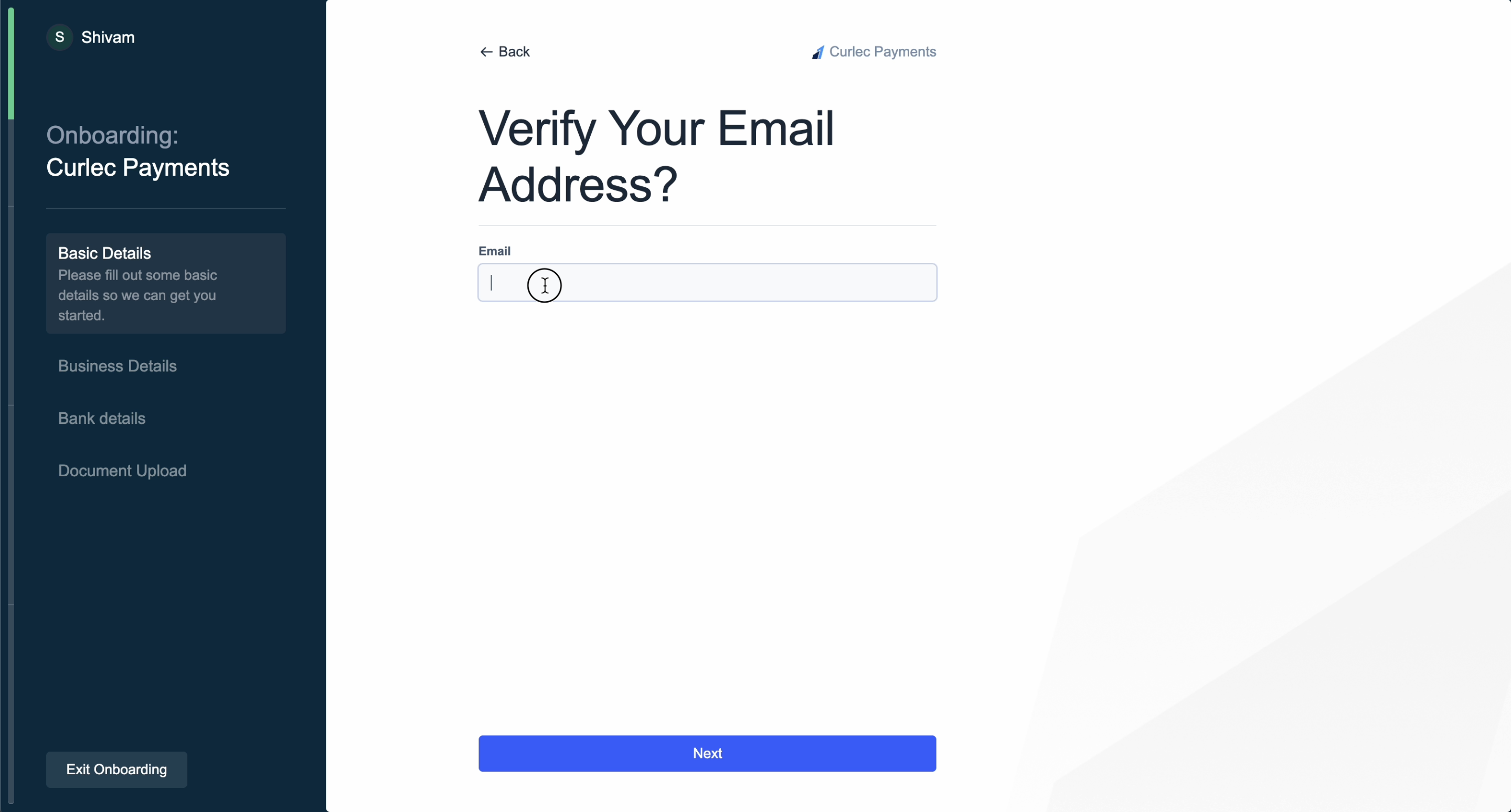
- Enter your Email id and click Next.
- Enter OTP and click Next.
- Enter your Business Name. This name must be the same as mentioned in your legal documents.
Business Details
Business Details
Provide the following business details: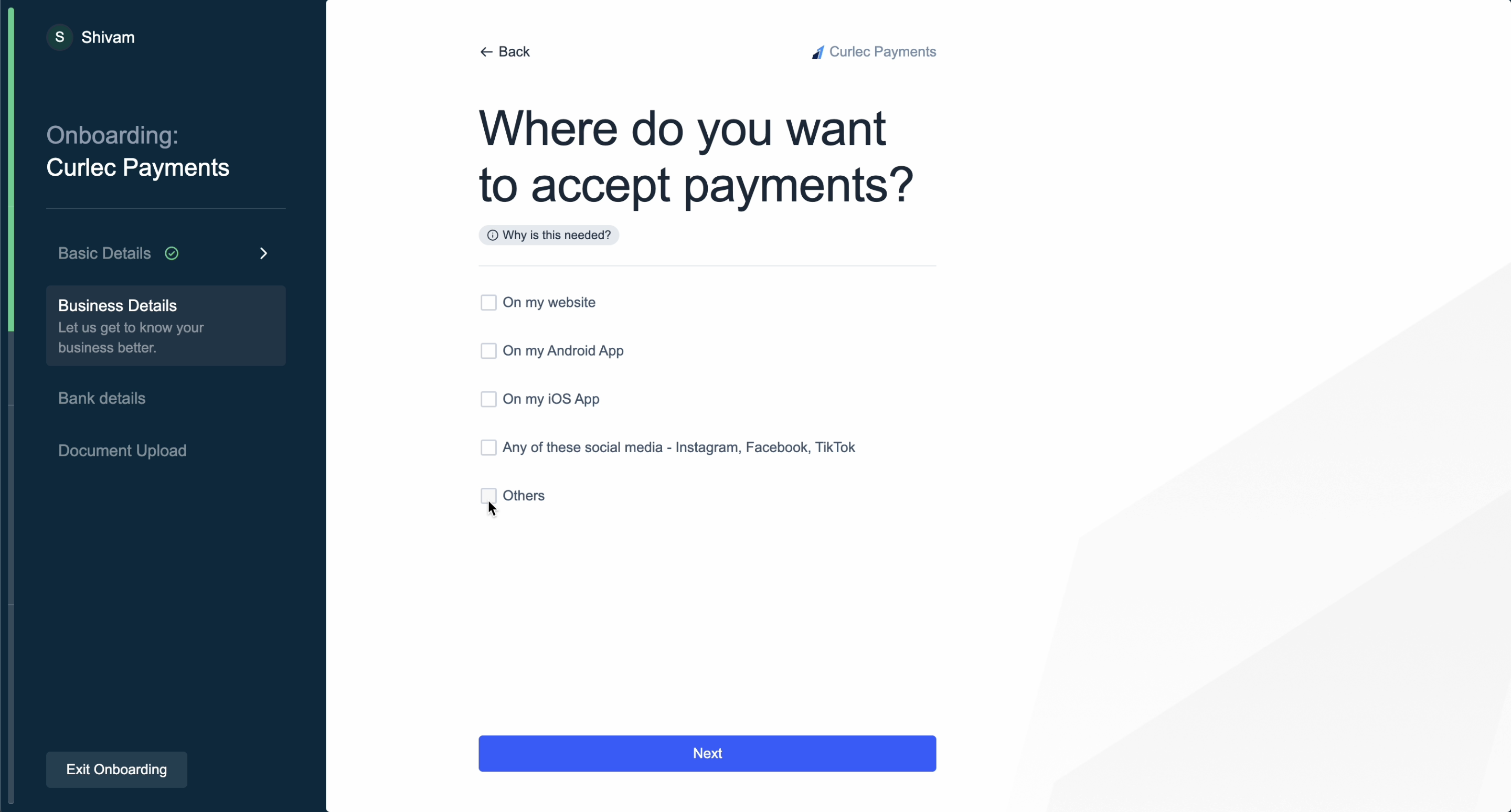
- Enter your Business Registration Number issued by SSM. If you do not have the registration number, you can select My Business is not registered with SSM check box and provide the Certificate of Registration/Incorporation.
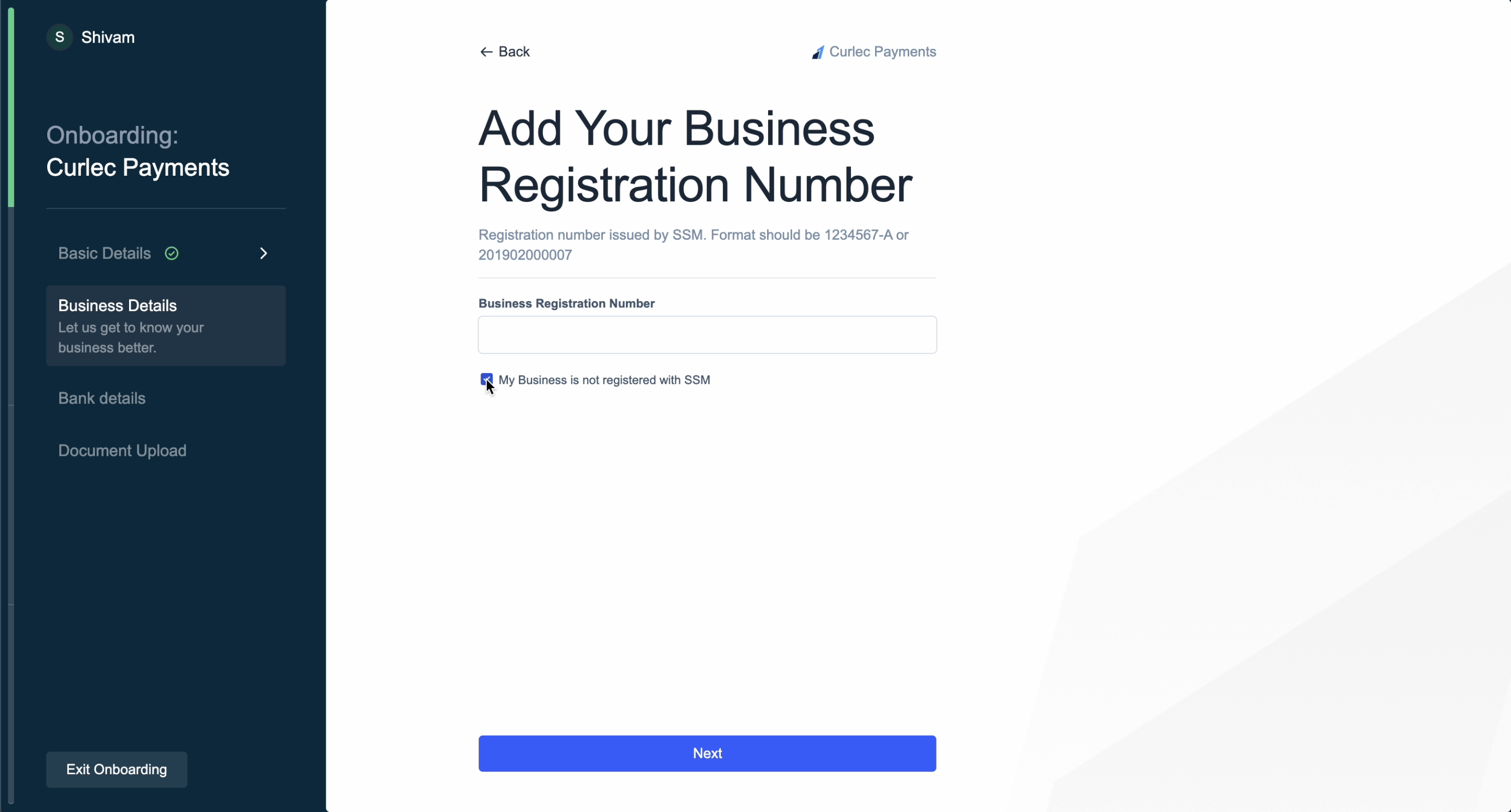
- Select whether you business is Registered or Unregistered. If your business is registered, select the business type from:
- Proprietorship
- Partnership
- Private Limited (Sdn Bhd)
- Public Limited (Bhd)
- LLP
- Trust
- Society
- Select your Business Category and click Next.
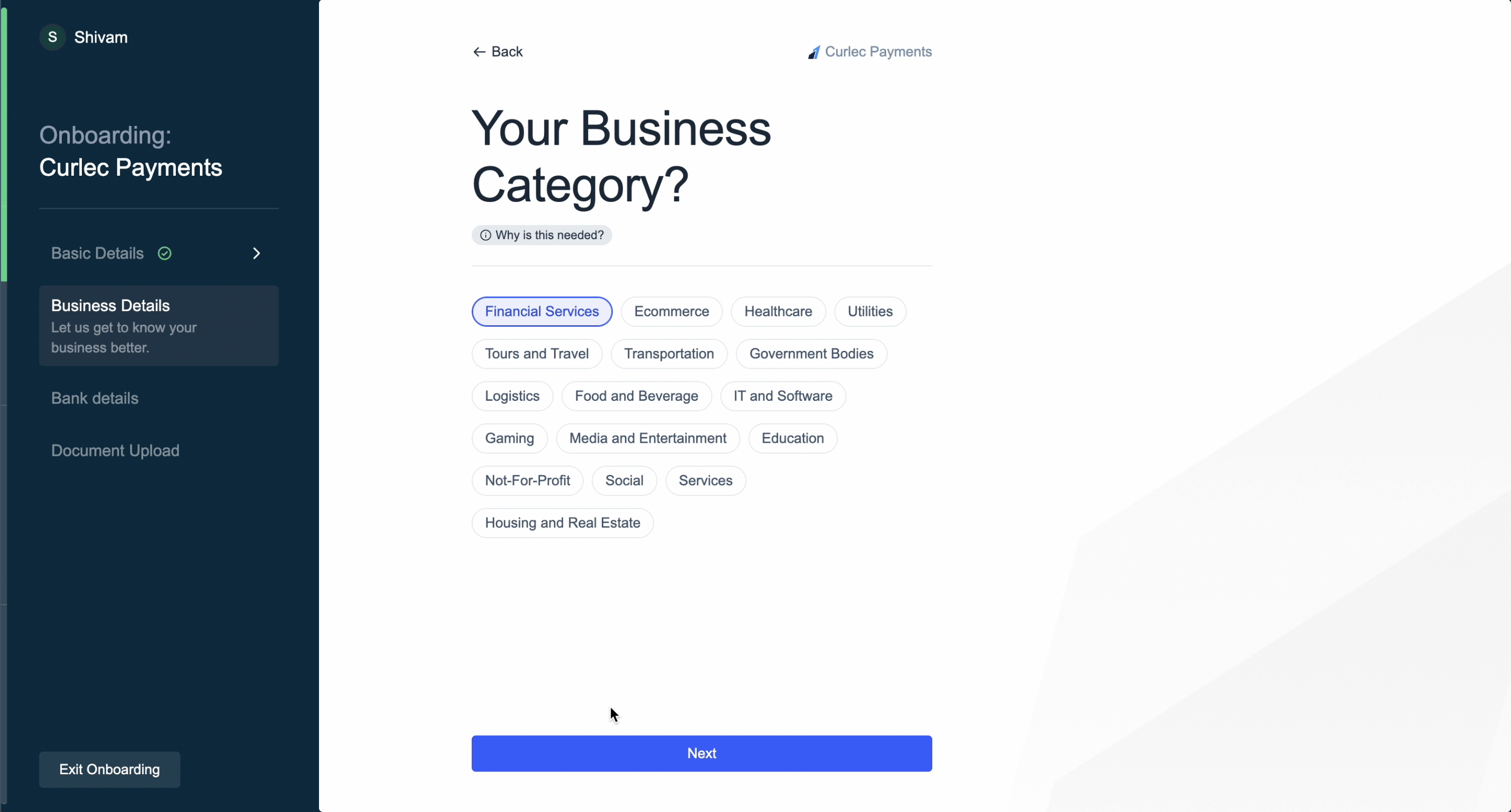
- Select a Sub Category and click Next.
- Select how you want to accept payments. In case you choose Others, explain how you will accept payments and click Next.
- Enter you Business Address and Postcode. Same as operational address check box is selected by default, in case the address is different, de-select and enter the operational address.
Bank Details
Bank Details
Provide the following details for transactions: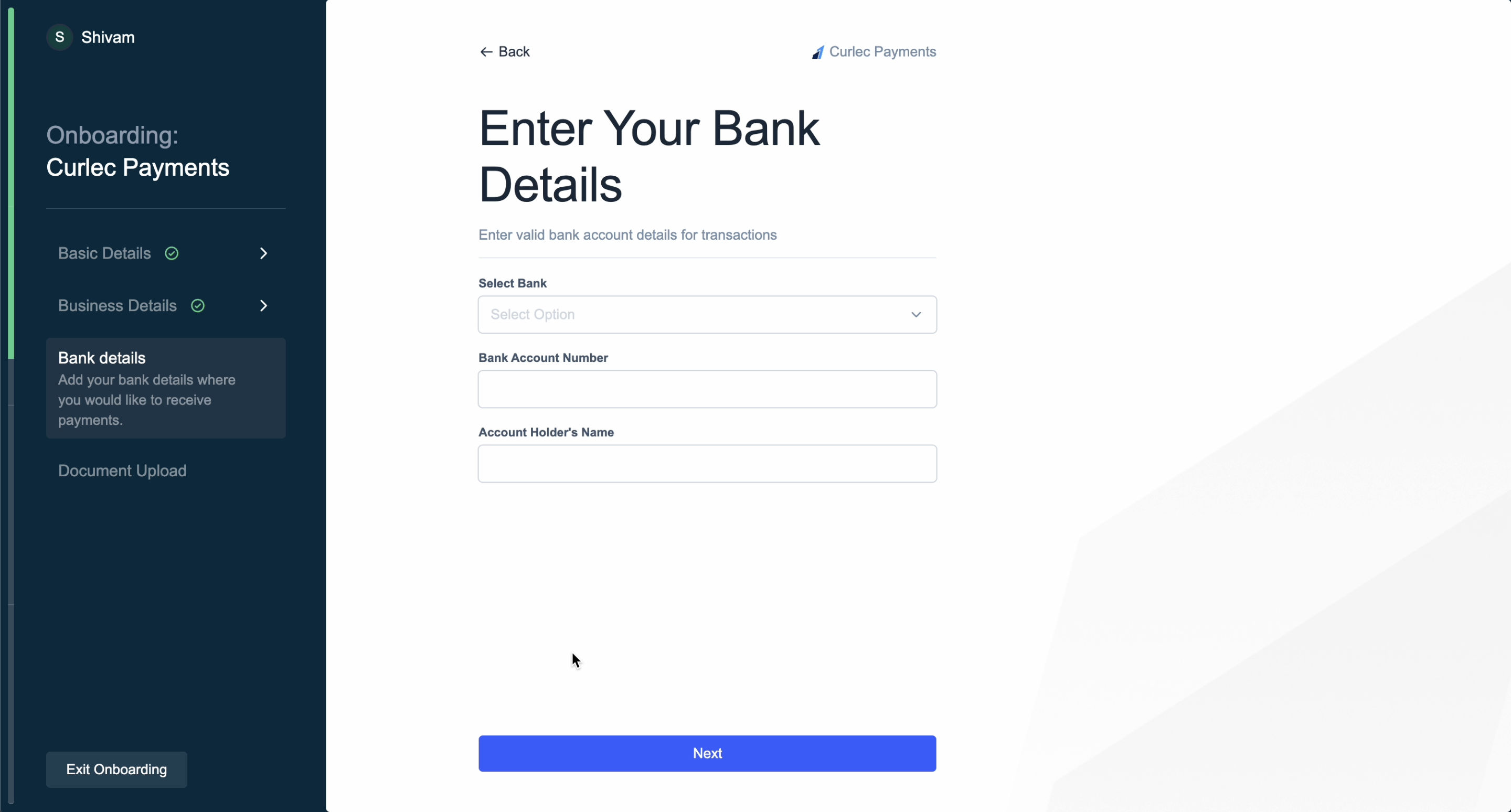
- Select Bank linked to your registered business, from the drop-down list.
- Enter the Bank Account Number and Account Holder’s Name. Click Next.
Document Upload
Document Upload
Provide the documents in PDF format.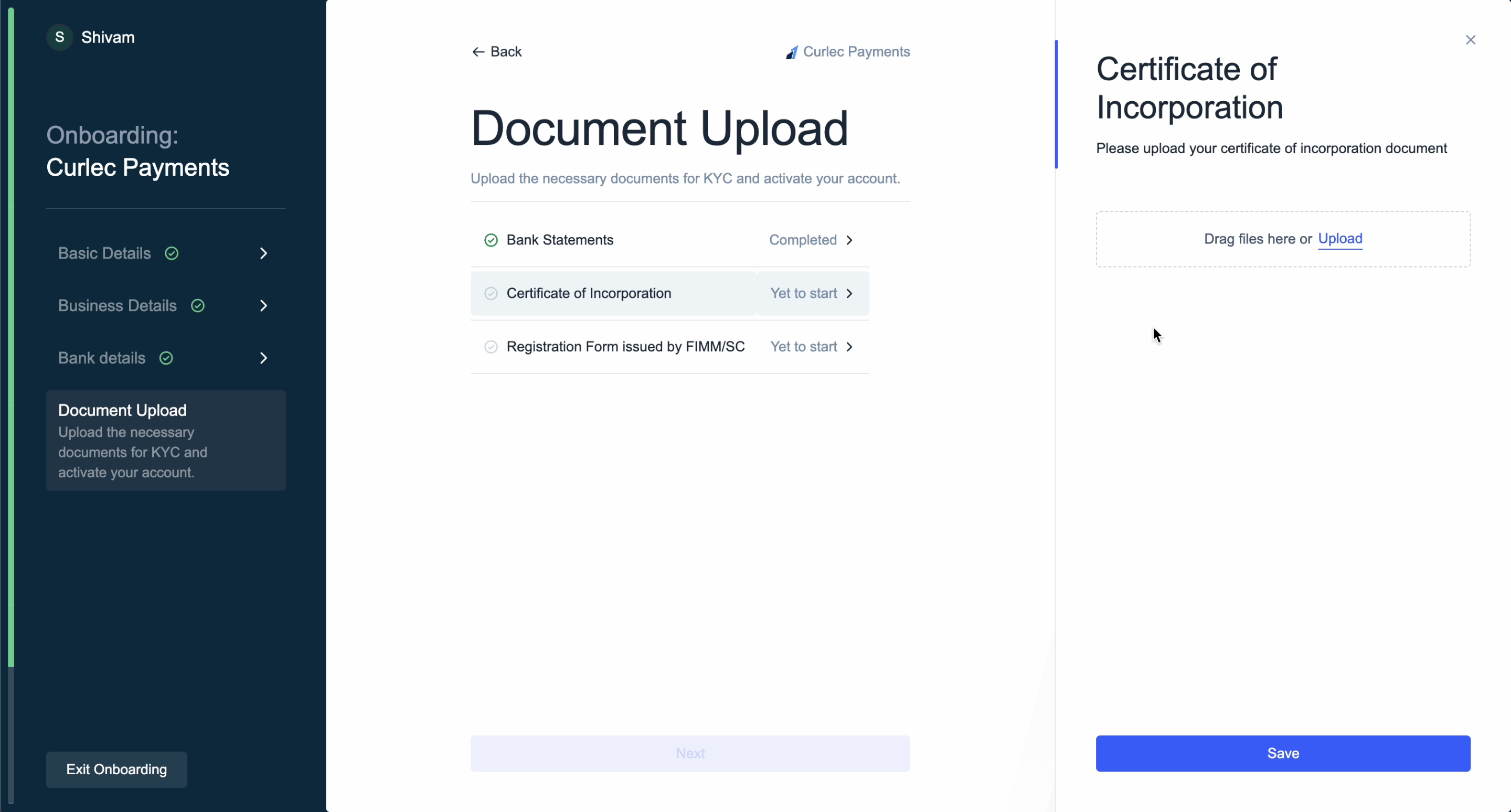
- Based on the chosen business type, a list of documents are asked for KYC. Select the document, upload the required file and click Save. Know more about the required KYC documents.
- Once all the documents have been uploaded, click Next.
- Accept payments upto RM 30,000.
- You can explore the range of products.
- You can access the Test mode on the Dashboard to test and experience the products offered by Razorpay Curlec. Test mode does not involve actual money transactions.
- You have to generate separate API keys for Live and Test modes. Know more about API Keys.
Set Up Multiple Accounts
As a business owner, you may need different accounts for different kinds of work. However, it is challenging to obtain a new mobile number each time you want to set up an account. With Multi-Account, you can set up different accounts using the same mobile number and email id as your existing account.Example
Assume Nur is a Malaysian business owner who has an account with Razorpay using Mobile Number:+60123456789 and Email Id: nur.aisyah@example.com.
Nur uses Multi-Account feature to set up another account. Razorpay will use the same number and email id as shown above to set up the other account. This will work in a similar way in your respective country.
Set up Another Account Using Website
Set up Another Account Using Website
- Go to the website and click Sign Up.
- Enter your mobile number or email id and click Continue.
- Enter the OTP sent to your registered mobile number and click Verify.
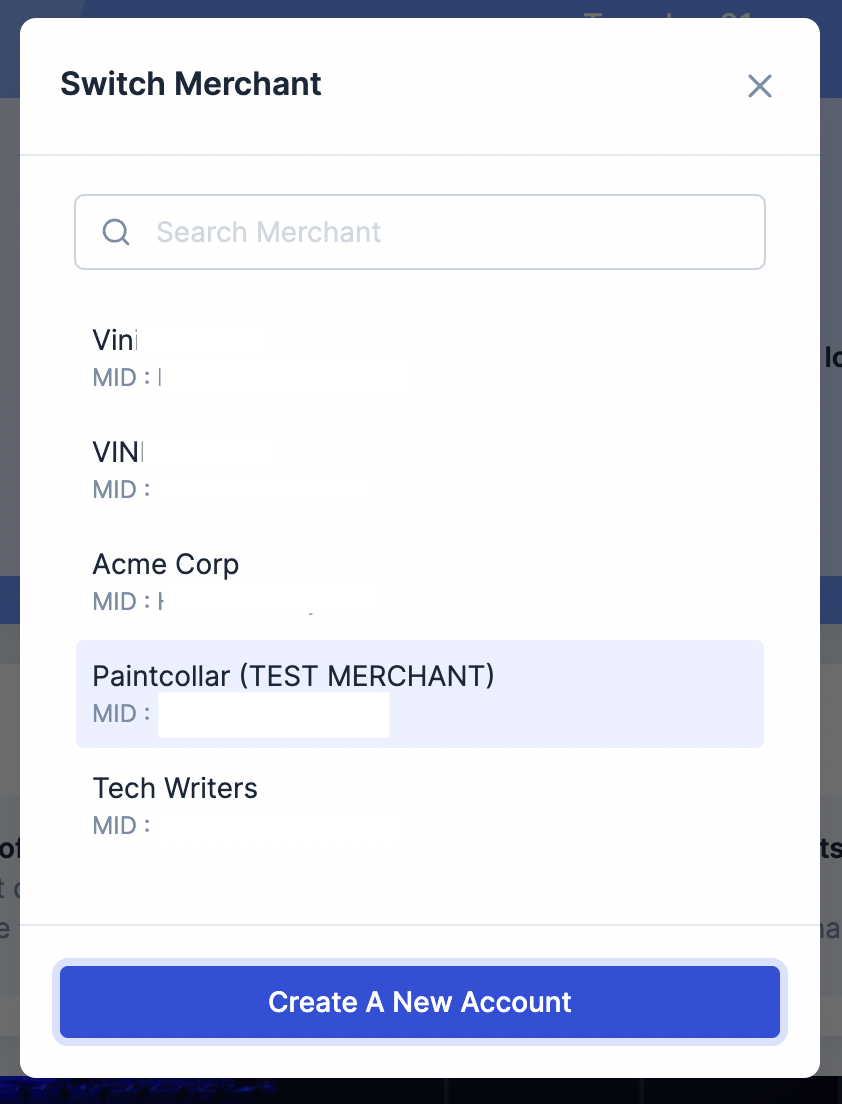
- All the accounts linked to the entered number/email is are displayed. Click Create a new account.
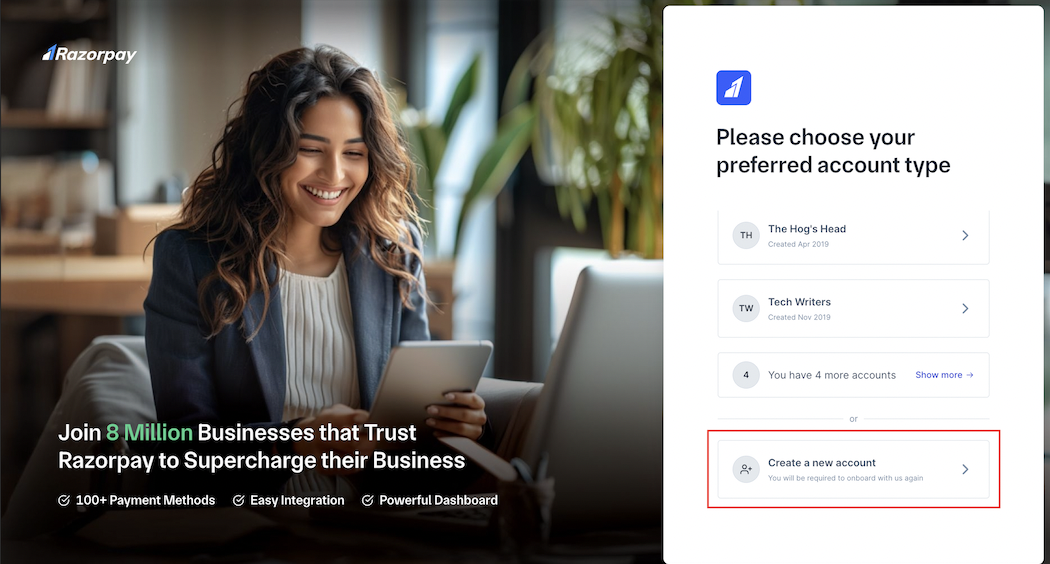
- Select the country and click Verify.
- Your existing number and email id is already registered with the new account. Enter your name and continue with Sign Up and KYC.