

Create a New Account
Follow these steps to create a Razorpay account:- Install the Razorpay Curlec Mobile App from Google Play Store.
- Open the app and tap Create Account.
- Enter your mobile number or email address. Tap Next.
- Create a password and tap Create Account.
- A verification code is sent to your mobile number or email id. Enter the code to verify the mobile number or email id.
- Business Overview: Enter your business details, billing label and provide your website/app URL. If you do not have one, select the relevant option. Tap Save & Next.
- Business Details: Enter details such as business PAN and name, authorised signatory’s PAN and name and the business address. Tap Save & Next.
- Contact Details: Enter your name and contact details. Enable the Get account updates on WhatsApp option to receive WhatsApp notifications. You can disable WhatsApp notifications from the Dashboard. Tap Submit.
-
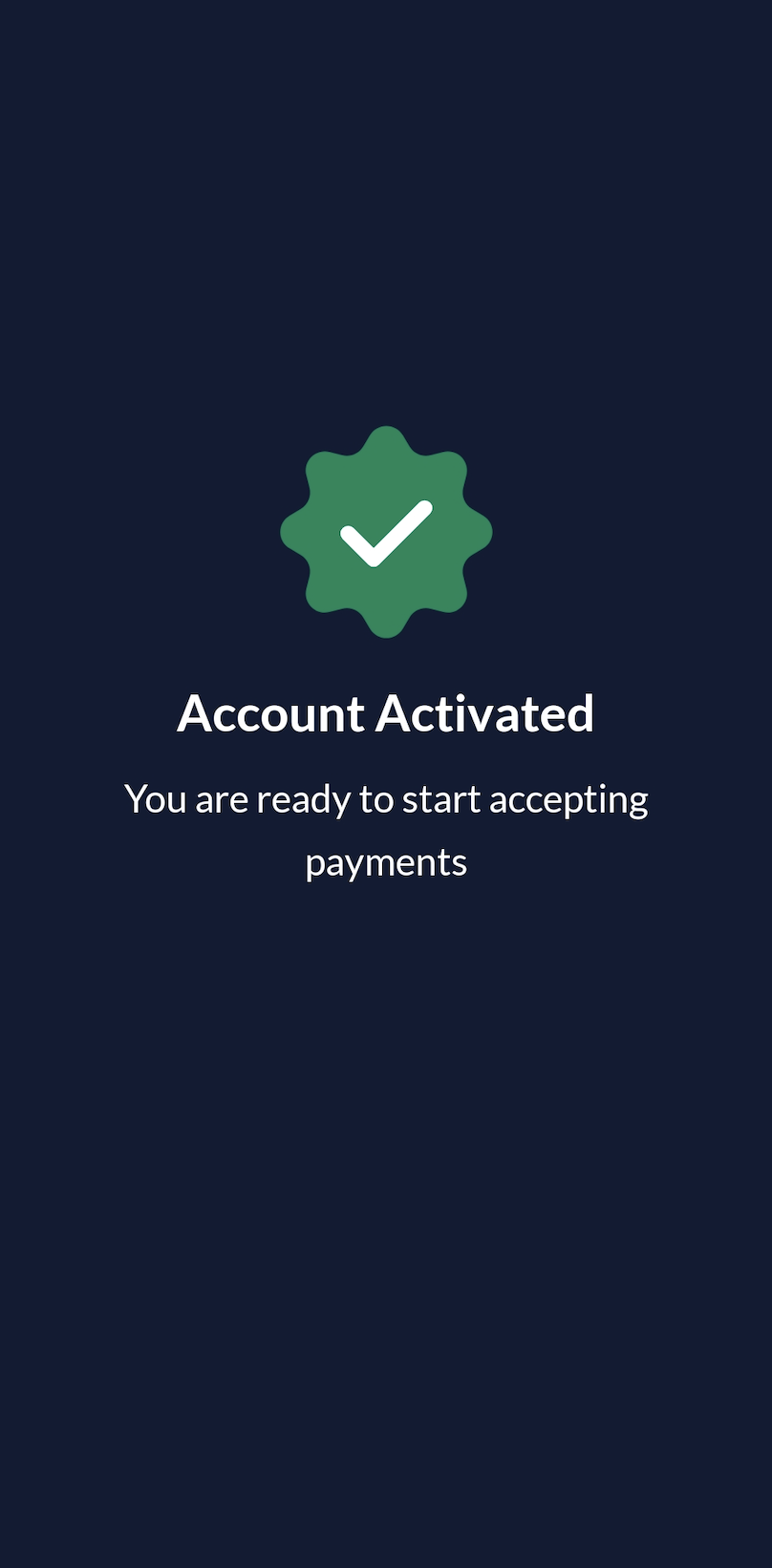
Your account is activated.
Submit KYC Details
Submit KYC Details
Submit KYC details for a Razorpay account on the mobile app. Tap Complete KYC to initiate the account activation process.Enter the following details:
- Bank and Company Details: Enter the bank account details to which Razorpay should transfer the amount collected from customers (minus fees and tax).
- Enter your Business Registration Number issued by SSM. If you do not have the registration number, select My Business is not registered with SSM check box and provide the Certificate of Registration/Incorporation.
- Tap Save and Verify.
Onboarding Videos for Various Business Types
Watch these videos to check the business verification and document verification details required for your business type:Business Verification Process
Document Verification Process
Provide Clarification
During the review process, we may reach out to you for clarifications. You can address these queries on the web version of the Dashboard.Successful Activation
Successful Activation
Your Razorpay account is activated upon successful review of all the information provided above.
Sign In
Follow these steps to sign in with your existing Dashboard credentials.- Install the Razorpay Mobile App from Google Play Store.
- Open the app and tap Login.
- Enter your Dashboard credentials and tap Login.